
How to Use MCP: Connect Claude and ChatGPT to Notion
Still copying AI answers into Notion after every meeting, then opening your calendar app to type the same dates in again? No matter how smart the AI is, if it sits apart from your work tools, moving the results around is still your job.
MCP (Model Context Protocol) is an open standard that connects AI apps like Claude and ChatGPT to outside tools such as Notion, Google Calendar and Google Drive. The official MCP docs describe it as a USB-C port for AI applications. This guide shows how to use MCP step by step in Claude, Claude Code and ChatGPT, the security checks to run before you connect anything, and a workflow that turns daglo meeting transcripts into Notion pages.
What Is MCP? Think of It as USB-C for AI
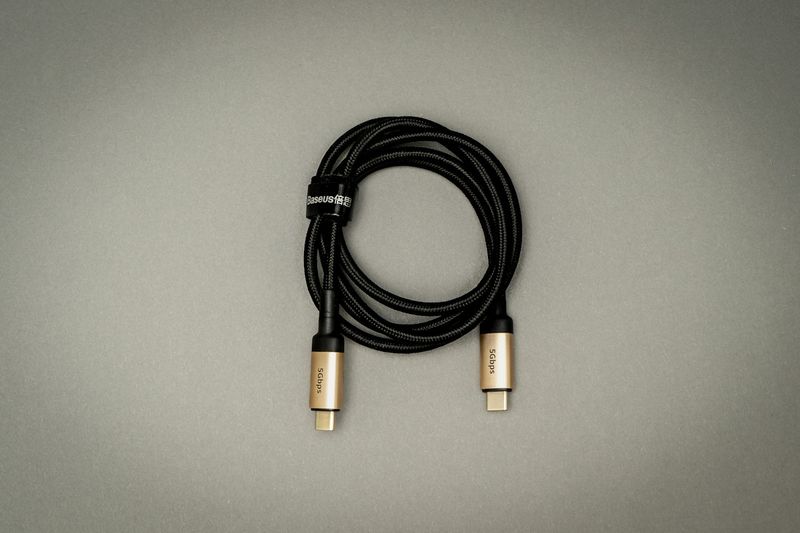
MCP is an open standard that defines one common way for AI apps and external tools to talk to each other. Just as one USB-C port handles chargers, monitors and drives, a tool that ships an MCP server once can be plugged into many AI apps the same way.
- MCP server: the connection point a tool like Notion or a calendar uses to expose actions to AI, such as searching pages or reading events.
- MCP client: the AI app that connects to a server and uses those actions, such as Claude, ChatGPT or Claude Code.
- What it unlocks: a connected AI can do more than read your data. It can create and edit pages and take actions on your behalf.
| AI app | Where to connect | How to add | Note |
|---|---|---|---|
| Claude (web and desktop) | Customize > Connectors | Pick from the directory or paste a server URL | Free plan allows one custom connector |
| Claude Code | Terminal | claude mcp add command | Supports remote and local servers |
| ChatGPT | Settings > Apps | Connect ready-made apps; custom servers need developer mode | Plan support varies (beta) |
How to Connect MCP in Claude and Claude Code
In Claude, you add a server from the Connectors menu and then switch it on from the + button in the chat. Services listed in the directory, such as Notion, can be picked from a list. For anything else, you paste the remote MCP server URL yourself.
- Open connectors: on claude.ai, go to Customize > Connectors.
- Add the service: for directory services, select one and click Connect. For others, click Add custom connector and enter the server URL.
- Sign in and review access: read the permissions the service asks for on its sign-in screen, then approve.
- Turn it on in a chat: click the + button, open Connectors and enable only the connectors this conversation needs.
In Claude Code, adding a server takes one terminal command. For a remote server, give it a name and URL, as in claude mcp add --transport http notion https://mcp.notion.com/mcp. If the server needs a login, run /mcp inside Claude Code and finish the browser sign-in.
- Scopes: the default (local) applies to the current project for you only,
--scope projectshares it with your team through a .mcp.json file, and--scope userapplies it to all of your projects. - Check status: run
claude mcp list.
For MCP setup in Codex, see our Codex setup guide.
How to Connect MCP Apps in ChatGPT
ChatGPT handles connections in the Apps section of Settings. Ready-made apps only need a sign-in. To add an MCP server that is not listed, you turn on developer mode and create the app yourself.
- Open Apps: on ChatGPT for the web, go to Settings > Apps.
- Enable developer mode: under Advanced settings, switch on Developer mode. In a company workspace, an admin may need to allow it first.
- Create the app: click Create, enter the MCP server URL and a name, choose an authentication method and review the tools it finds.
- Use it in a chat: start a new conversation, select the app and make your request.
ChatGPT can only reach remote servers over HTTPS, not ones running on your own machine. Developer mode is in beta, so supported plans and menu names change often. Check the OpenAI Help Center for current availability before you set it up.
5 MCP Security Checks Before You Connect

An AI connected through MCP can read data, and it can also create, change and delete it. Before connecting, check who built the server and exactly what access you are granting.
- Connect only trusted servers: start with servers published by the service itself or listed in an official directory. Skip URLs from unknown sources.
- Review permission scopes: read what the sign-in screen asks for, and make sure a read-only task is not getting write or delete access.
- Watch for prompt injection: servers that pull in outside content, such as web pages or email, can carry hidden instructions that try to steer the AI.
- Use "Always allow" sparingly: read each tool approval request and save Always allow for servers you trust. Set tools you do not need to Blocked.
- Switch off what you are not using: enable only the connectors each chat needs, and never paste API keys into config files you share with your team.
From daglo Meeting Notes to a Notion Page

Once MCP is connected, meeting follow-up becomes one continuous flow. Transcribe and organize the meeting in daglo, then ask an AI with the Notion connector turned on to turn that summary into a meeting notes page.
- Transcribe: upload the meeting recording to daglo to get a speaker-separated transcript and a summary.
- Organize: ask Board Chat something like "List the decisions and next steps" to pull out only what you need.
- Save to Notion: paste that result into Claude or ChatGPT with the Notion connector on and ask, "Create a new page in our meeting notes database."
In this flow, daglo handles transcription and organization, and the AI connected to Notion through MCP writes the page. Because you pass along a short summary instead of the full transcript, you also use less of your AI plan.
To sum up, MCP is the common standard that links AI to your work tools. Claude connects through the Connectors menu, Claude Code through the claude mcp add command, and ChatGPT through the Apps menu. Whatever app you use, connect trusted servers with only the access they need. Menu names and plan support change often, so check the official docs as you go.
#MCP #ModelContextProtocol #Claude #ClaudeCode #ChatGPT #NotionIntegration #AIProductivity #daglo
Where talk becomes work.
Get started with 1,000 credits a month — no credit card required.