
How to Use ChatGPT Sites to Turn a Spreadsheet into a Team Web App
Is your team still tracking launch dates in a spreadsheet, and answering the same "which tab is current?" question every week? The more tabs and copies you add, the longer it takes anyone to find the latest information.
ChatGPT Sites is a feature that lets you describe a website or lightweight web app to ChatGPT, then host and share it from the same place. This guide is based on what the daglo team heard at OpenAI DevDay Seoul 2026 and on OpenAI's official documentation. We walk through the internal app shown on stage, the steps to build something similar, and what to check first.
What is ChatGPT Sites? Web apps you build by describing them

ChatGPT Sites lets you build a website or lightweight web app in a conversation, then host it inside ChatGPT and share it with your team. OpenAI says it includes hosting, access controls, file storage, and database support.
According to the OpenAI Help Center, Sites is in public beta for ChatGPT workspaces and for Plus and Pro accounts. It is on by default in Business workspaces, while Enterprise admins need to turn it on. Mention @Sites in your prompt (or just describe the site you want), and ChatGPT builds a private preview you can refine by chatting before you share it. Each site gets a database of up to 10 GB, and an automation can refresh its content on a schedule. For the rest of the announcements, see our OpenAI DevDay Seoul 2026 recap.
The Seoul session also introduced Web MCP. Instead of an agent looking at a screen and clicking like Computer Use does, Web MCP lets an AI agent call a website's structured functions directly, the way it would call a tool. The takeaway: building and running a web app is getting much easier, and the users of web services will increasingly include AI agents, not just people.
Five steps, following the Launch Radar demo

In the Seoul Sites session, the presenters built an internal app called Launch Radar from a spreadsheet. It pulls each product's launch status, related documents, and known caveats into a single view.
- Prepare the data: start with a sheet that has clear columns such as product, launch date, owner, status, and doc link. Clear column names lead to a more accurate first draft.
- Write the request: say what the app is for and how it should look, for example: "Build an internal web app from this sheet that shows launch status by product. Sort by the nearest launch date and highlight any caveats."
- Pick your views: in the demo, the same data could be switched between list, board, and calendar views. The presenters also refined the design by annotating the preview and adding custom components.
- Set permissions: people signed in with their ChatGPT accounts and each saw what they were allowed to see. A Linear plugin showed every signed-in user the tickets assigned to them, and status changes made in the app flowed back to Linear.
- Schedule updates: the app refreshed its data every day at 9 a.m., storing it in a SQLite database and file storage.
The key idea is that you don't rebuild and redeploy the app every time something changes. You build the interface once, and the database plus a scheduled job keep the content current. For more on connecting outside tools, see ChatGPT plugins vs. MCP and skills.
Internal web apps a marketing team could build

Any spreadsheet that lots of people keep asking about is a good candidate for a small web app. Here are a few ideas a marketing team could try right away.
| App | Data | Views |
|---|---|---|
| Campaign calendar | Campaign, channel, start and end dates, owner | Calendar, board by channel |
| Ad creative tracker | Creative name, platform, status (in production, in review, live), link | Board by status |
| Event registration hub | Schedule, registration counts, info docs | Schedule list, summary numbers |
| Launch checklist | Launch items, owner, due date, caveats | List by owner |
Start with one view that a single team opens every day. OpenAI Academy also notes that a focused internal tool is a better fit for Sites than a complex product.
Before you build: sharing, personal data, and beta status
A site built with Sites is a live service that real people open. Decide who can see it, what data goes into it, and remember that the feature is still changing.
- Who can see it: choose between just you and admins, selected users or groups, or everyone in the workspace. You can invite a named person outside your workspace as a viewer, and publishing publicly to anyone with the link is a separate setting.
- Who can edit it: editors can see the live database, so give edit access only to collaborators you trust.
- Personal data: leave out customer contact details, or replace them with aggregate numbers. OpenAI notes that Sites does not support data residency at launch.
- Beta status: usage limits and features may change during the public beta, so check the official help pages before you rely on it.
Turning meeting decisions into app data
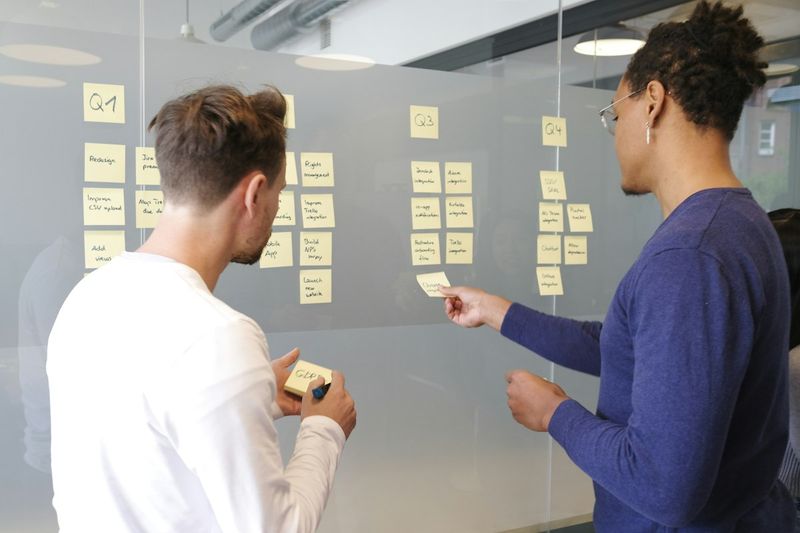
Launch dates and task owners are usually decided in meetings. If the meeting record is accurate, the data you move into the sheet and the app will be accurate too.
daglo transcribes and summarizes your meetings, keeping the full transcript and the summary together. Ask Board Chat something like "Put the launch dates and owners we agreed on in this meeting into a table," then paste the answer into your sheet and check it against the original transcript in seconds.
Speaker ID remembers the voices of the people in your meetings and fills in their real names instead of "Speaker 1" from the next recording on. daglo is the first service in Korea to offer this to all users. Learn more about Speaker ID
#ChatGPTSites #ChatGPT #NoCode #InternalTools #OpenAI #WorkflowAutomation #SpeakerID #daglo
Where talk becomes work.
Get started with 1,000 credits a month — no credit card required.