
Updates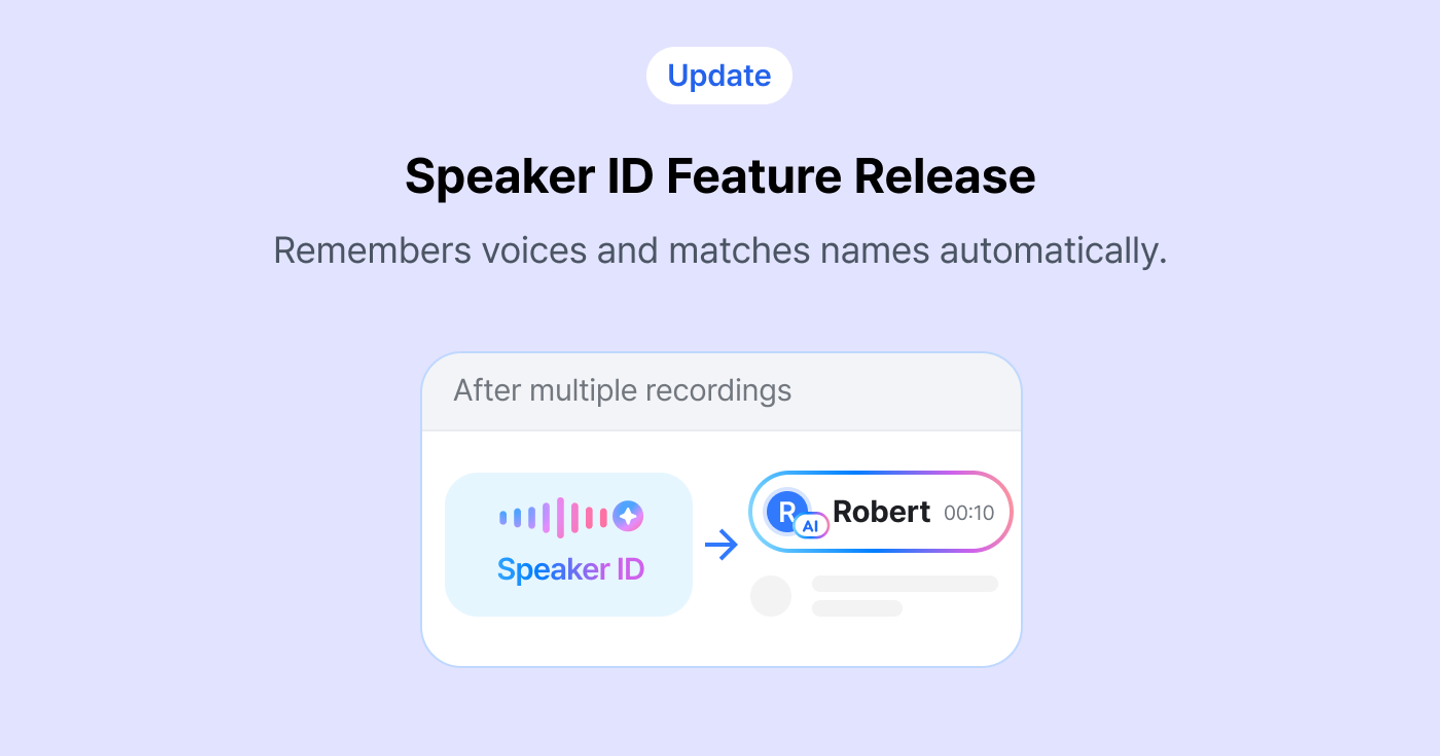
Speaker ID
🎙️ Speaker ID
Speaker ID remembers voices and automatically shows speaker names. Once you’ve assigned a speaker a few times, new transcriptions show the matched name with an AI badge instead of “Speaker 1.”
👉 How to use
- In the script of a transcribed board, select a speaker such as “Speaker 1” and assign a name.
- Assign the same speaker on a few more boards, and daglo will learn their voice.
- When the same voice is detected in a newly transcribed board, the name is displayed automatically.
📌 Notes
- If an automatically assigned name is wrong, you can change it directly in the script.
- You can manage Speaker ID in More > Preferences > Features > Management participants. In the Settings tab, you can also turn it on or off for each speaker in the speaker list.
- Speaker separation must be turned on to use this feature.
- Recognition may be harder when someone speaks very little, speaks quietly, or sits at a different distance from the microphone each time. The same voice can sound different depending on the recording environment, so assigning a speaker on a variety of boards improves accuracy.
- If you delete a speaker, they will no longer be identified automatically on new boards. Names already assigned on existing boards stay as they are.
- When you delete your account, your saved voice data is deleted as well.
Where talk becomes work.
Get started with 1,000 credits a month — no credit card required.