
How to Edit a Transcript on iPhone and Share It Right Away
Still holding off on sending your meeting notes because one name is wrong and you can't fix it until you're back at your laptop? It's only a few words, but those few words can push your recap back by half a day.
Editing a transcript means correcting the words AI got wrong so the record says exactly what people said. With daglo, you can now edit your transcript (script) right in the iPhone app. Long-press the paragraph, fix it, and save. You can wrap up your notes on the train and send them before you even reach your desk.
👉 Learn more about iPhone script editing
What should you fix in a transcript?
AI transcription gets most words right, but new names and in-house terms can come out as similar-sounding words. Fix those few spots, and the transcript is ready to share as is.
| What to check | Examples | Why it matters |
|---|---|---|
| Names and companies | Client names, a new teammate's name | A misspelled name looks careless when shared |
| Jargon and acronyms | Internal project names, industry terms | You can search for them later |
| Numbers and dates | Quotes, deadlines | Prevents mix-ups about cost and timing |
| Sound-alike words | Homophones with different meanings | Keeps the meaning of each sentence clear |
Not sure where to look? Ask Board Chat first: "List every person, company name, and number mentioned in this conversation." You'll see exactly what to double-check.
Before you share meeting notes: fix names and product terms, then send

If you're the one taking notes, the best time to share them is right after the meeting. Since you can edit on your iPhone, you can finish the notes while you're on the move.
- How to use it: Skim the transcript as you leave the room and long-press only the paragraphs with a wrong name or product term. Fix several in a row, then save once.
- Ask Board Chat: "Summarize the action items and deadlines we agreed on today."
Turn on Speaker ID too, and you'll have even less to fix. Speaker ID remembers the voices of the people in your meetings and automatically puts their real names in your next transcript instead of "Speaker 1." daglo is the first in Korea to offer this to every user. daglo fills in the names, and you only need script editing for a few remaining terms. Learn more about Speaker ID
When quoting interviews: listen to the original as you edit

When you quote someone in an article or report, every word has to be right. For recordings and uploaded files, you can play, pause, and skip 5 seconds back or forward while editing, so you can check each word against the speaker's own voice.
- How to use it: Open the paragraph with the quote, replay that part, and confirm each word.
- Ask Board Chat: "Pick five strong quotes from this interview for my article."
Client meetings and calls: get the numbers and dates right

For freelancers and sales teams, meeting notes are your record of what was agreed. Fix the quoted price and delivery date, and you're ready to send the client a follow-up email.
- How to use it: After the meeting, check the paragraphs with the client contact's name, prices, and dates first.
- Ask Board Chat: "Write a follow-up email to the client with the price and timeline we agreed on today."
How to edit a transcript on iPhone
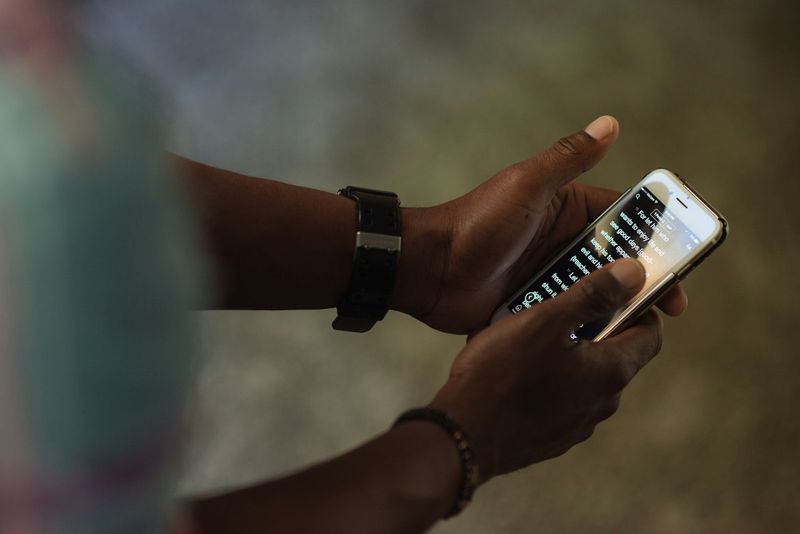
Once a transcription is done, you can edit it right away in four steps.
- Open a finished board in the daglo iPhone app.
- Long-press the paragraph you want to change and choose [Edit].
- Make your changes. You can keep editing other paragraphs too.
- Tap [Save] to apply your changes.
Your edits are applied when you tap [Save], so be sure to save when you're done. Starting with your next meeting, fix the few wrong words before you share and be the first to send an accurate record.
#EditTranscript #TranscriptEditing #MeetingNotes #AITranscription #iPhoneRecording #InterviewTranscript #NoteTaking #daglo
Where talk becomes work.
Get started with 1,000 credits a month — no credit card required.