
Podcast Transcripts With Speaker Names, Done Automatically
Still turning podcast recordings into transcripts by labeling every line, "that's the host, that's the guest," one by one? Cleaning up a single episode can take longer than recording it, and every hour spent on labels pushes back your edit and show notes.
A podcast transcript is your recorded conversation written out line by line for each speaker, and it becomes the base for edit notes, show notes, and highlight clips. Speaker ID in daglo, the first of its kind offered to everyday users in Korea, remembers the voices of your hosts and guests and adds their names to your transcripts automatically from the next episode on. daglo remembers who said what, so you don't have to.
Why do speaker names slow down podcast transcripts?
Conversational shows move fast, with two or three people trading lines, so labeling who said what is the most tedious part of any transcript. With Speaker ID turned on, you see real names instead of Speaker 1, and you can skip that step entirely.
| Before | With Speaker ID | |
|---|---|---|
| Names in the transcript | Speaker 1, Speaker 2 | Your hosts' and guests' real names |
| Fixing names | Replay the audio and relabel every episode | Tell daglo a few times, then it's automatic |
| Starting the edit | Only after every line is labeled | As soon as the transcript is ready |
| Finding highlights | Listen through the whole recording again | Skim each person's lines and pick |
Shows with regular hosts: no more labeling every episode
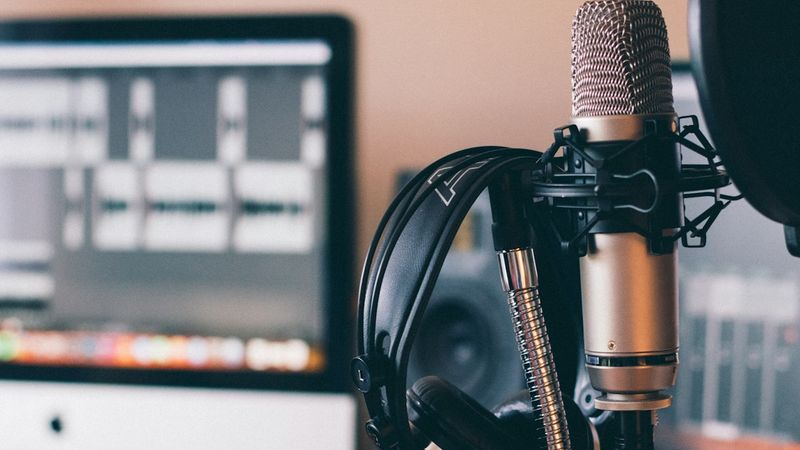
If the same two or three hosts record every week, Speaker ID pays off the most. Name your hosts in the first few episodes, and after that, simply uploading a recording gives you a transcript with their names already in place.
- How to use it: upload your audio or video file to daglo, transcribe it, and assign each host's name in the transcript.
- Ask Board Chat: "List the topics the hosts covered in this episode in order, with the time each one starts."
As episodes pile up, transcript cleanup takes less and less time, so you can start editing the day after you record. Your back catalog also turns into a clean, searchable record of every conversation, ready to reuse for compilation episodes or blog posts.
Guest episodes: pull out your guest's best lines
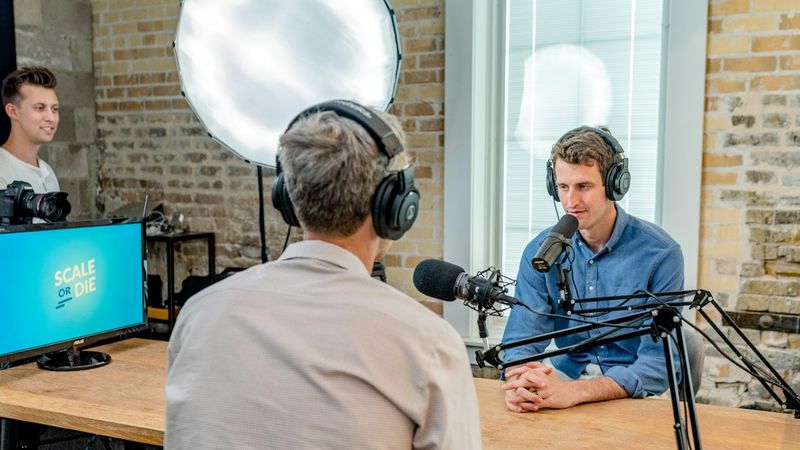
On guest episodes, your hosts' names are filled in automatically, so you only need to name the new guest once. With the guest's answers and the hosts' questions separated by name, picking highlights becomes much easier.
- How to use it: if a guest appears regularly, name them a few times. From their next appearance on, their name is added automatically too.
- Ask Board Chat: "Pick five lines from the guest that would work well as highlights."
Use those lines to write show notes and social posts, and you'll quote your guest accurately every time. It also makes it easy to send your guest a short recap of their best moments after the episode goes live.
Video interviews and live replays: a script for every speaker

Video interviews and live streams work the same way: upload the video file, and you get a transcript with each speaker's name. When you choose clips to cut or write a replay summary, you never have to double-check who said what.
- How to use it: if the same panel appears every week, name each panelist a few times. Conversations that mix Korean and English are transcribed as they are.
- Ask Board Chat: "Summarize each speaker's main point in one line, and tell me where they disagreed."
A transcript organized by speaker also makes it easier to plan follow-up episodes, because you can see at a glance which topics each panelist cared about most.
How to set up Speaker ID
There's no separate voice recording to set up. Transcribe as usual and tell daglo who's who a few times.
- In the transcript, tap Speaker 1 and change it to the speaker's name.
- Assign the same person's name in a few more episodes.
- When daglo shows a prompt saying it can now recognize that person's voice automatically, tap Set up.
- From your next transcript on, the speaker's name and an AI badge are added automatically.
New to Speaker ID? Read our Speaker ID launch post for the full picture. You can turn Speaker ID on or off for each person, or remove saved voices, anytime under Speaker management. Name your speakers in your next recording, and daglo takes care of the transcript from there.
#podcasttranscript #podcastscript #SpeakerID #videointerviews #livestream #contentcreation #transcription #daglo
Where talk becomes work.
Get started with 1,000 credits a month — no credit card required.