
Exploring the Interface
Below is the first screen you see after logging in.
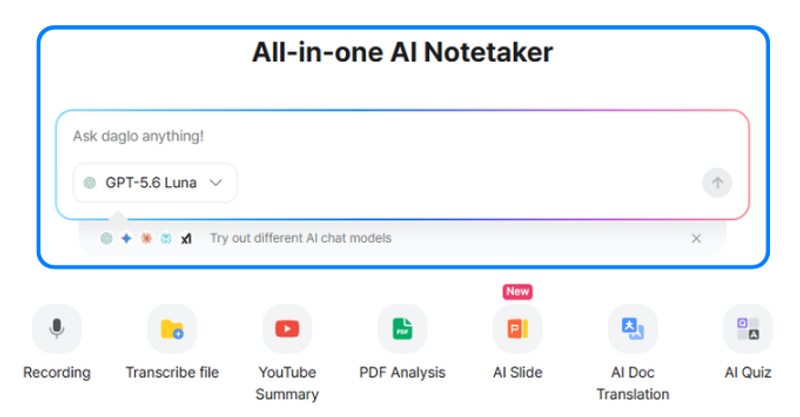
You can start chatting with various AI models directly from the center of the screen.
Let’s take a quick look at the main menus in the left sidebar.
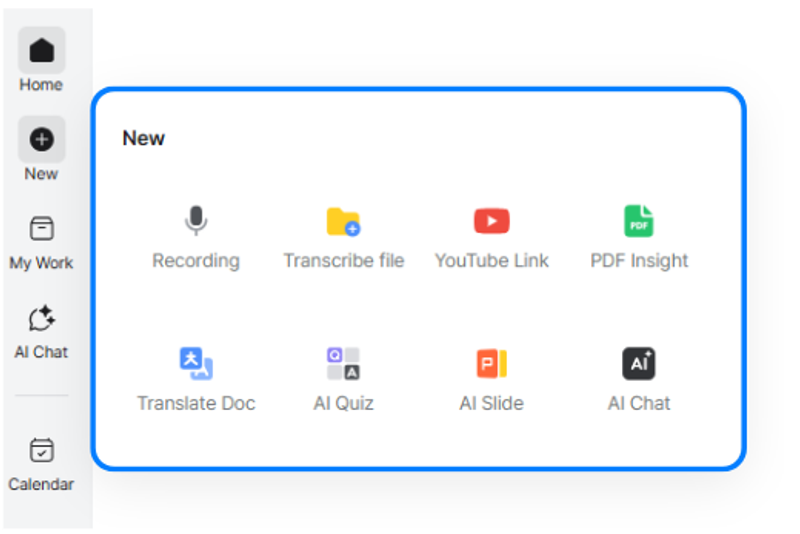
New: Start a new task.
Choose the task you want to perform freely, such as transcription through File Upload, YouTube Link, or Voice Recording, PDF analysis, or document translation.
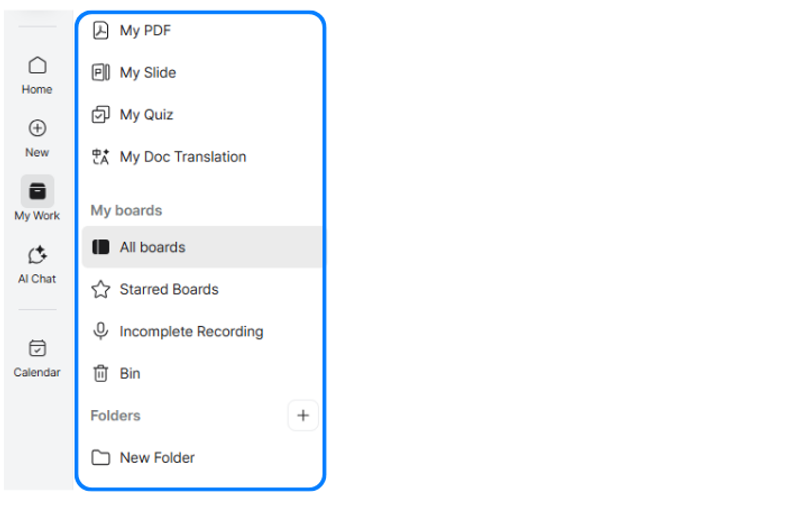
My Tasks: View a list of all tasks completed so far.
Tasks that use AI models are available at the top, while all transcription-related tasks can be viewed together under [My Transcriptions].
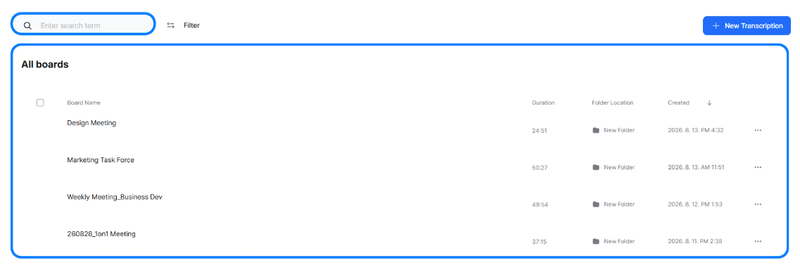
Click [All Boards] to view every board containing a transcription.
Search boards using a keyword, or click [New Transcription] in the upper-right corner to start a new transcription directly from this page.
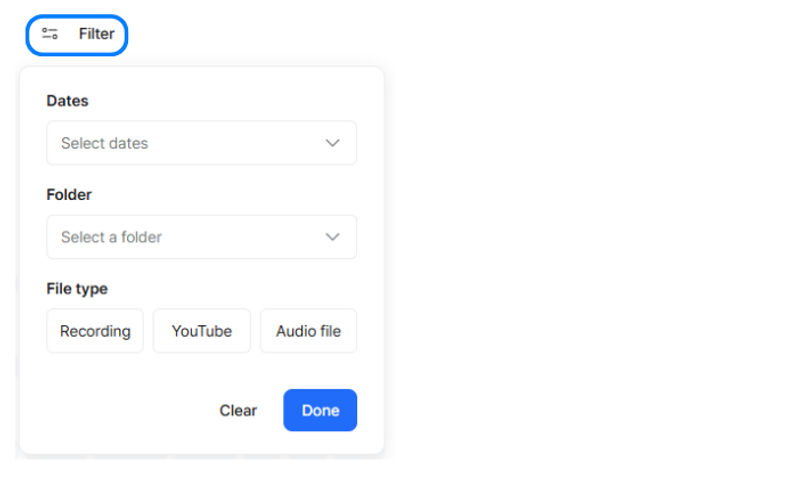
Click [Filter] to the right of the search box to filter by date, folder, or file type.
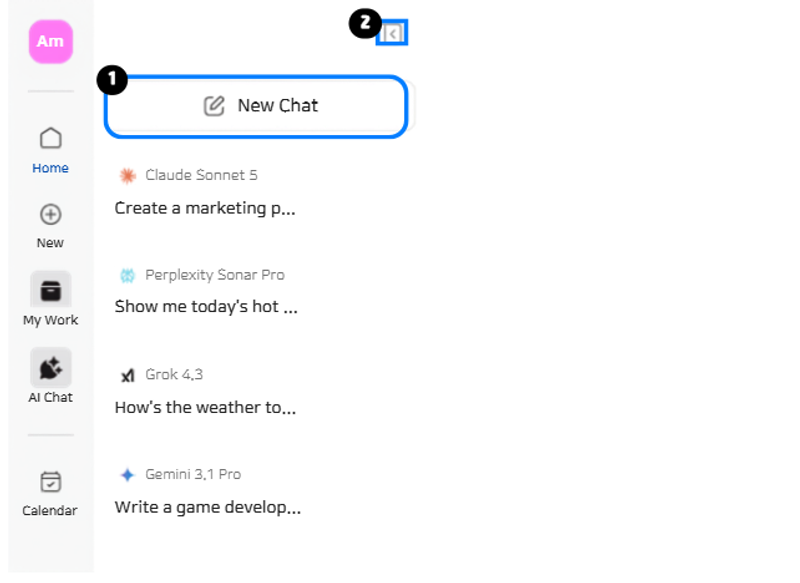
AI Chat: Chat with a range of AI models.
1) Click [New Chat] to immediately chat with a new model.
2) Click the folder icon in the upper-right corner to collapse the AI chat list and chat in a wider view.
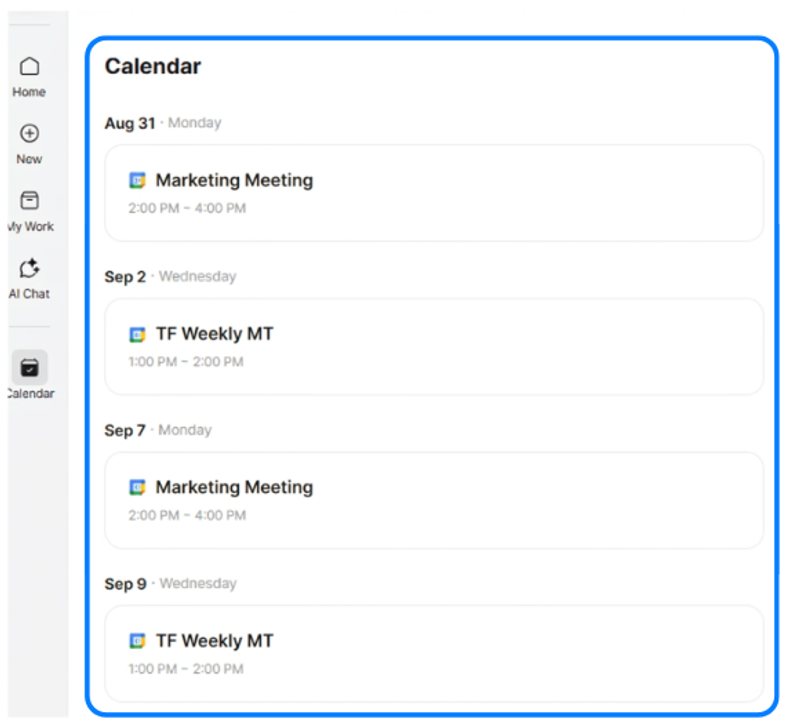
Calendar: Once you connect your calendar in Settings, you can view upcoming events here.
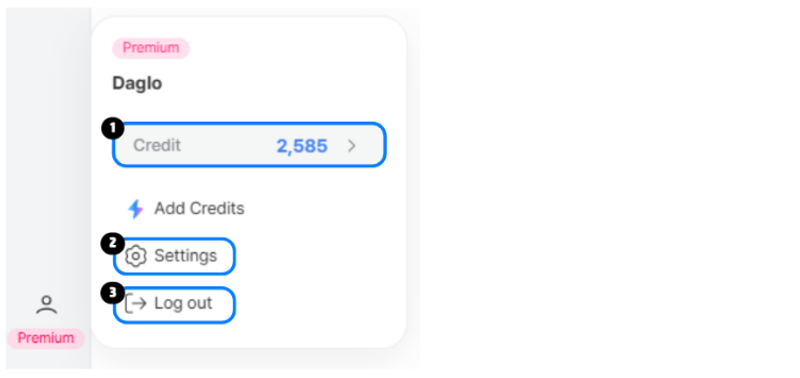
Profile icon: Hover over the icon to view the following:
1) View your remaining credit balance.
2) Go to Settings to view or update your account and billing information.
3) Click Log out to sign out of your account.
Navigating the App
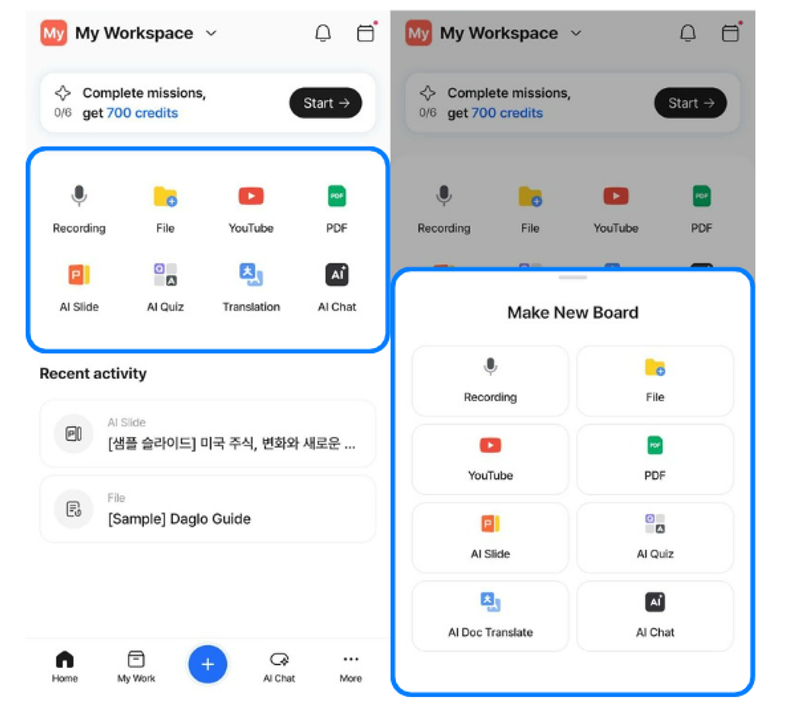
When you open the Home screen, you can tap a shortcut in the Quick Actions menu at the top to start the task you want right away.
Alternatively, tap the + button in the bottom navigation bar to get started.
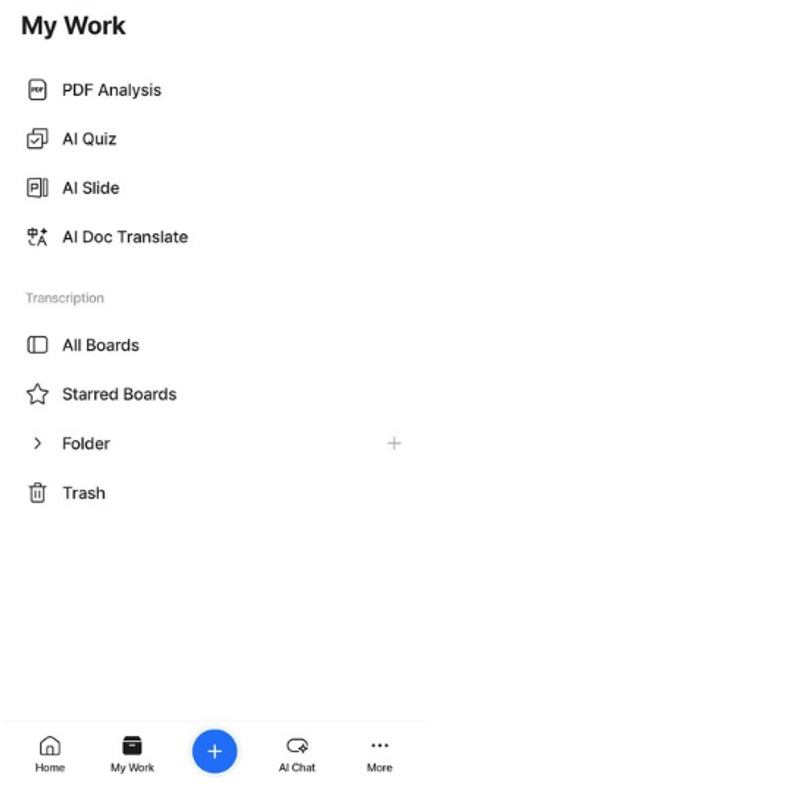
On the My Work screen, tap each category to view the boards you have created for that feature.
For Transcription, you can create folders to organize and view boards by type.
To create a new folder, tap the + button to the right of Folder.
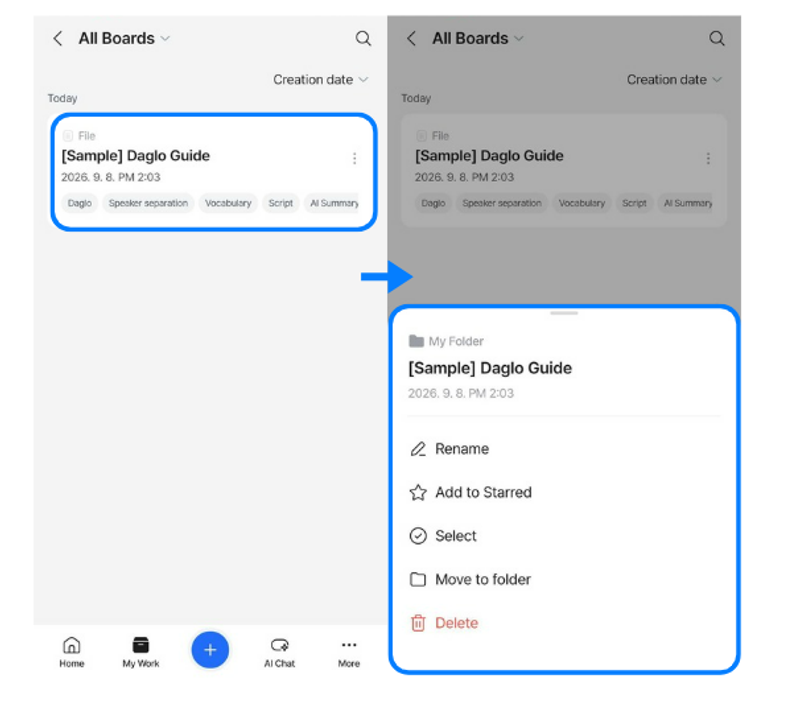
In All Boards, you can view all boards that have been transcribed.
Tap the menu button (three dots) to the right of a board to rename it, move it to a folder, delete it, and more.
Note: Deleted boards are moved to the Trash and are permanently deleted after 30 days.
Boards in the Trash can be restored; however, boards that have been permanently deleted from the Trash cannot be recovered.
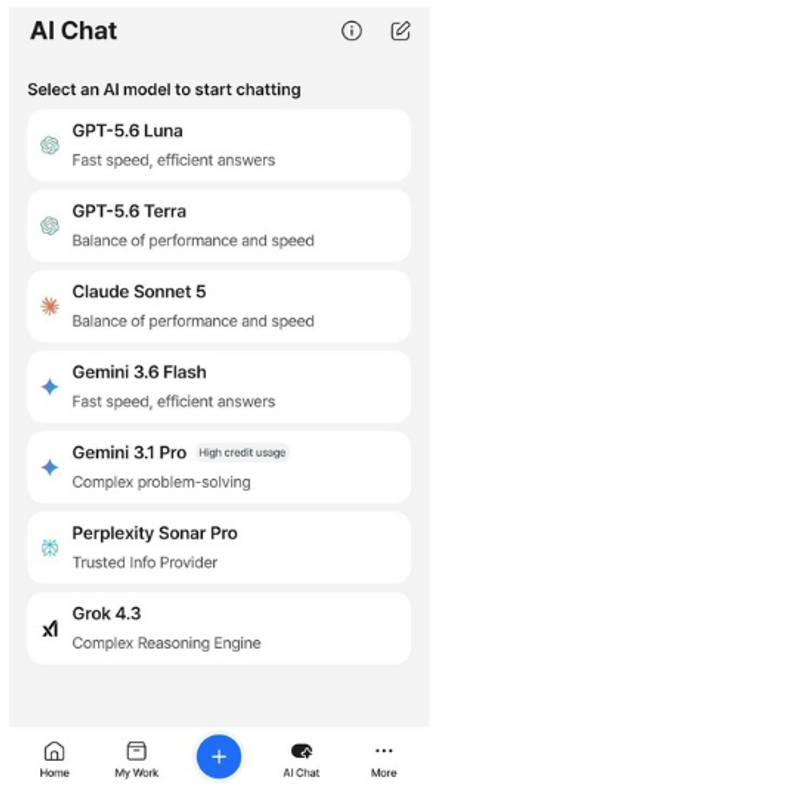
In AI Chat, you can chat with a variety of AI models.
Refer to the description below each model to choose the model best suited to your task.
Select an AI model, or tap the pencil icon in the upper-right corner to create a new chat.
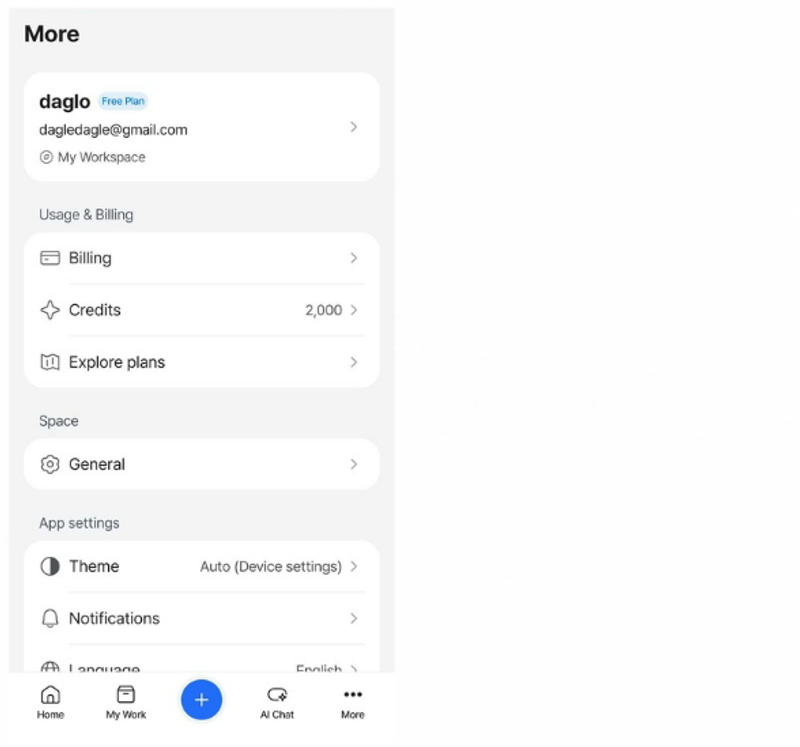
Under More, you can view your Daglo account and credits, manage app settings, upgrade your plan, configure notifications, log out, and more.