
File Upload and YouTube Video Transcription
You can upload an audio or video file directly and convert it to text.
This feature supports a wide range of file types, including interview recordings and online lecture videos.
File Upload and YouTube Video Transcription
You can upload an audio or video file directly and convert it to text.
This feature supports a wide range of file types, including interview recordings and online lecture videos.
Get Started
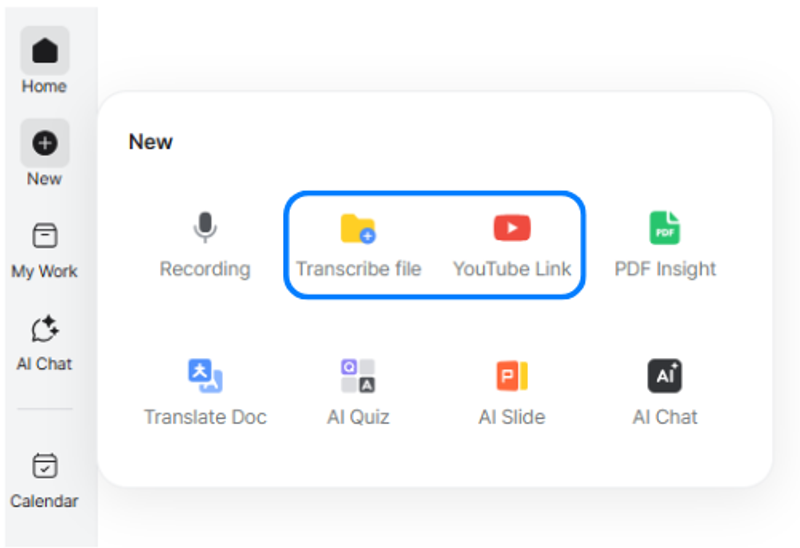
Select [New] > [Transcribe file] or [YouTube Link].
Upload
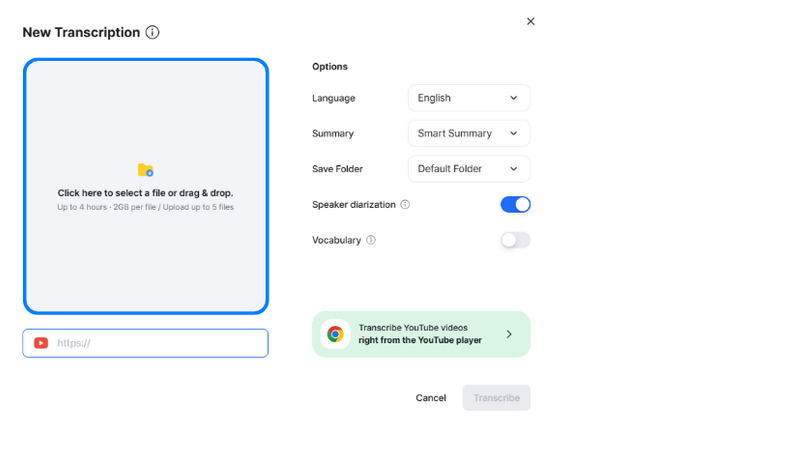
- Click the designated area to upload a file for transcription, or drag and drop it.
- Most audio and video formats are supported, including MP3, M4A, MP4, WAV, and MOV. View the FAQ on supported transcription file formats
- For a YouTube video, copy the URL using the [Share] button and paste it into the link field at the bottom.
Transcription Settings
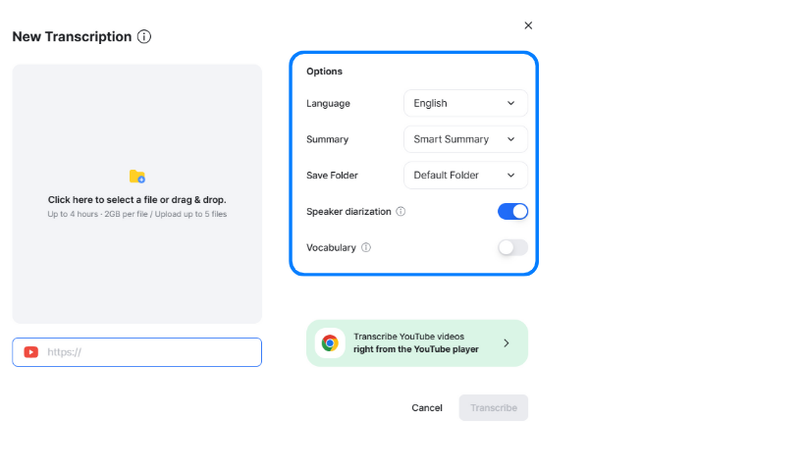
- You can configure the following transcription options.
- Language: Select the language of the transcript.
- Summary: Once transcription is complete, a summary is automatically generated using your selected template.
- Save folder: Select the folder in which the transcript will be saved.
- Participant diarization: Automatically distinguishes the voices of participants.
- Vocabulary: Improves transcription accuracy by applying proper nouns and technical terms registered in your glossary.
After configuring all options, click [Transcribe] in the lower-right corner.
A board will be created and transcription will begin automatically.
Transcribing Files in the App
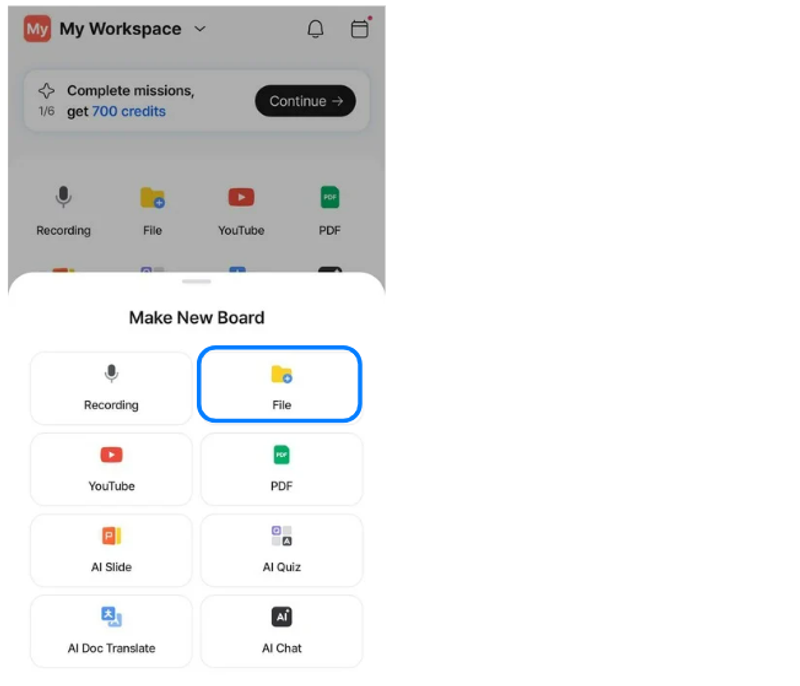
To get started, tap File in the Quick Actions menu on the Home screen, or tap + at the bottom of the screen > File.
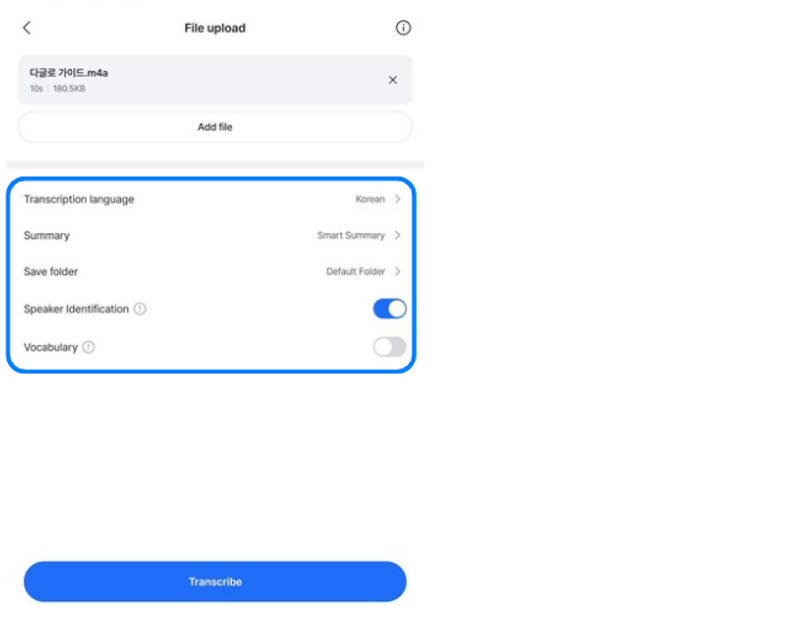
Upload a file from your device that you would like to transcribe.
Review the transcription settings, then tap Transcribe at the bottom to begin.
Tap the information icon in the upper-right corner to view the supported file formats and upload size limits.
Transcribing YouTube Videos in the App
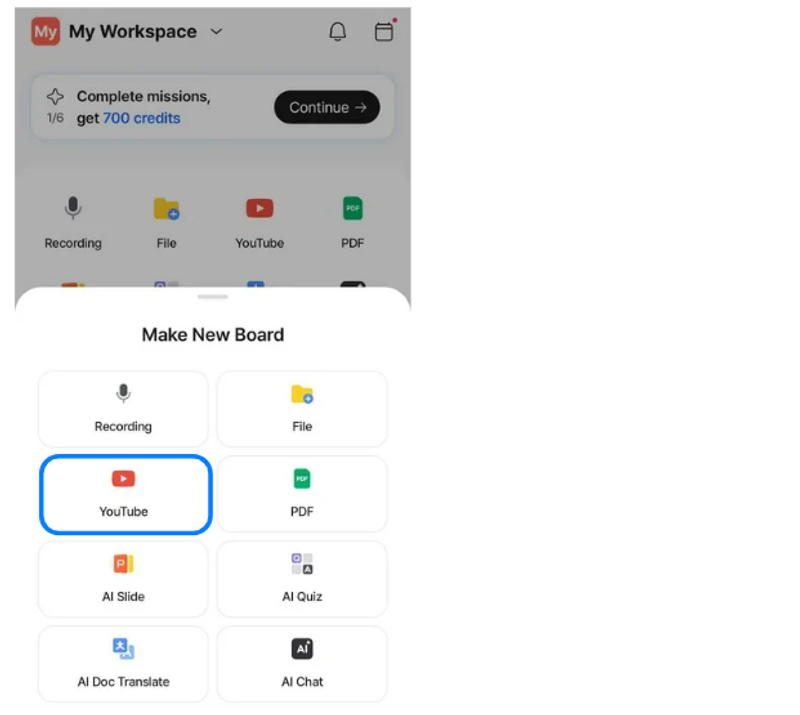
To get started, tap YouTube in the Quick Actions menu on the Home screen, or tap + at the bottom of the screen > YouTube.
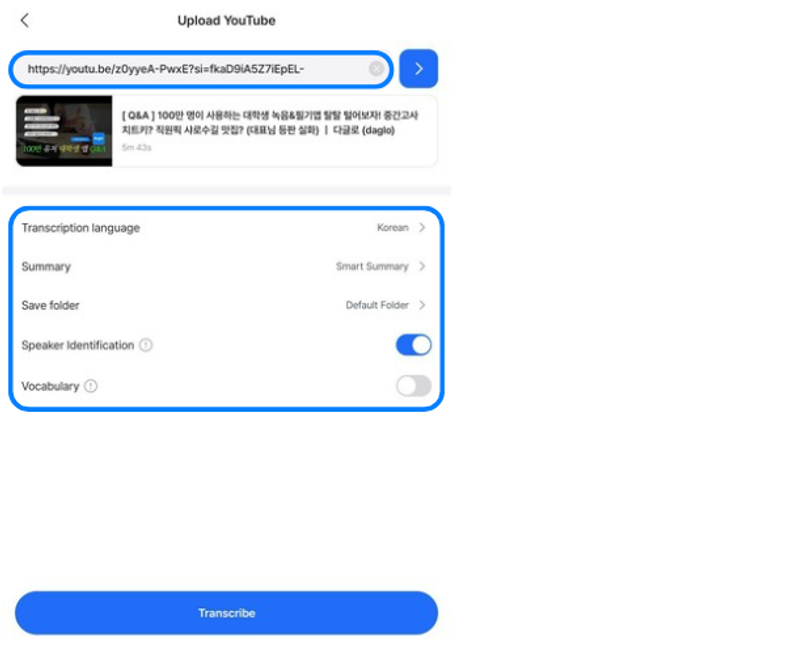
Tap the Share button below the YouTube video you want to transcribe, then paste the generated URL into the input field at the top.
The video title and thumbnail will appear below the input field.
Review settings such as the transcription language and Save folder, then tap Transcribe at the bottom to begin.
Completed file and YouTube transcriptions can be found in My Work > All Boards.
If you selected a folder, they can also be found in that folder.