
Participant Management
What is Participant Management?
You can manage participants using the “Participant Management” feature in transcripts created from recordings, file uploads, or YouTube transcriptions.
Instead of changing participant names for every transcript, you can search for and easily add participants you have registered previously.
In addition to names, you can save details such as organization, job function, position, and contact information, making it easy to distinguish between people with the same name or contacts from external organizations.
Use the updated Participant Management feature to create meeting notes in a more organized and efficient way.
Getting Started on the Web
First, open a board with a completed transcription and check the script panel on the left.
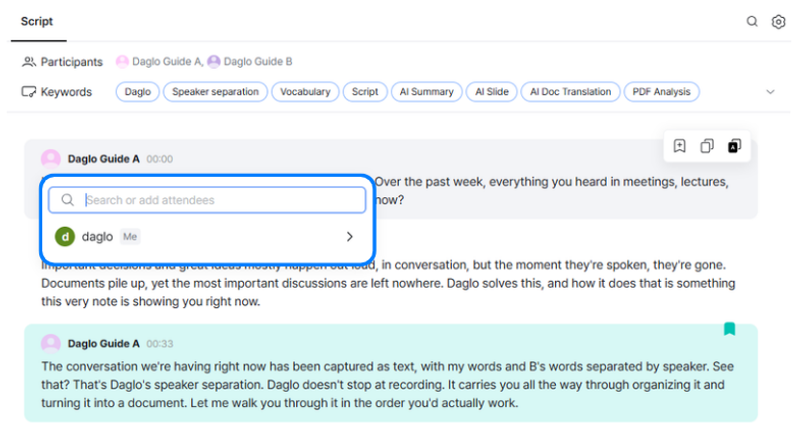
Select the speaker name you want to register as a participant to open the participant registration window.
Your own account is displayed by default when you open it.
Registering a New Participant
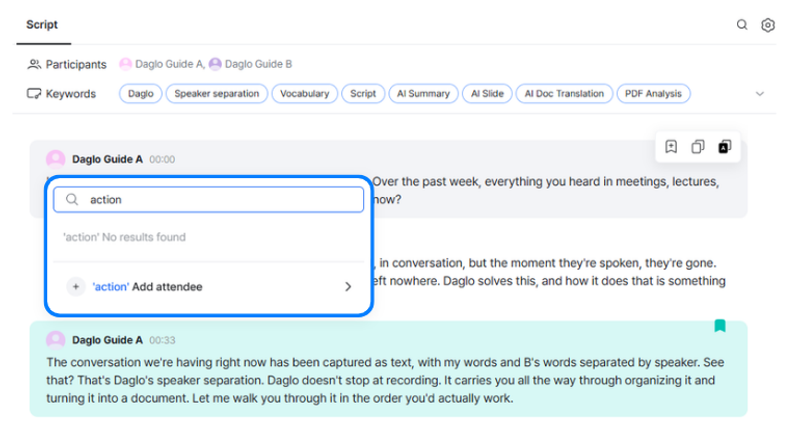
Search for a name to view the list of participants you have registered previously.
To add a new participant, enter the name you want to register and select the [Add attendee] button at the bottom.
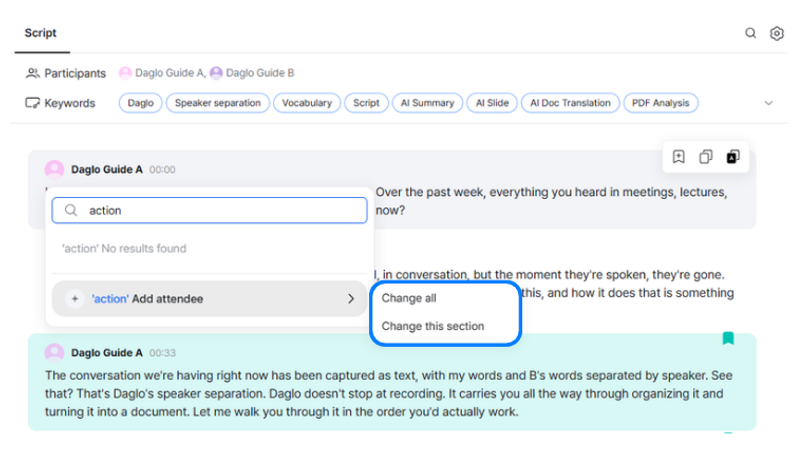
When adding a participant, you can choose whether to update all segments spoken by that speaker in the script or only the current segment (utterance).
Editing Participant Information
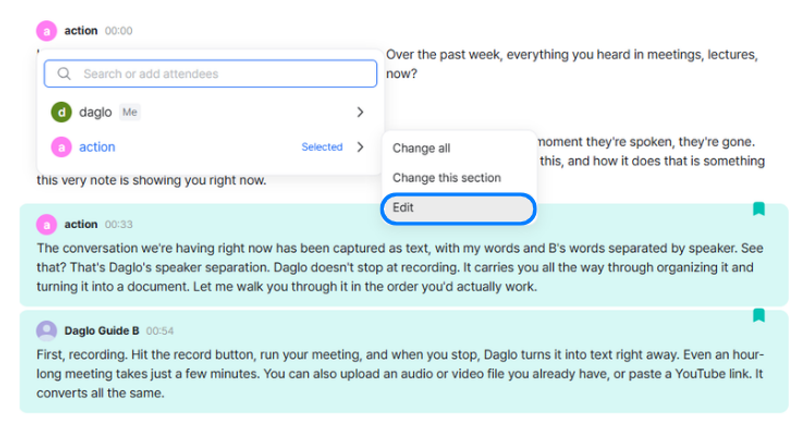
In the participant list, select the name of the participant whose information you want to edit, then click [Edit].
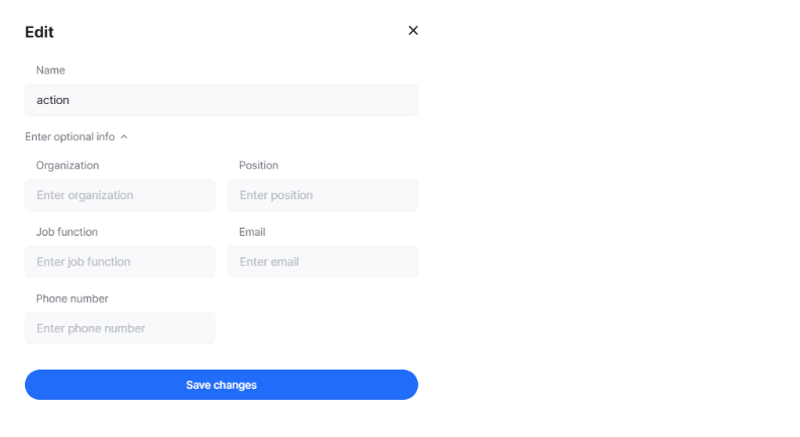
Enter the participant’s name and any optional information, such as organization, job function, and position.
Then click [Save changes] to complete the update.
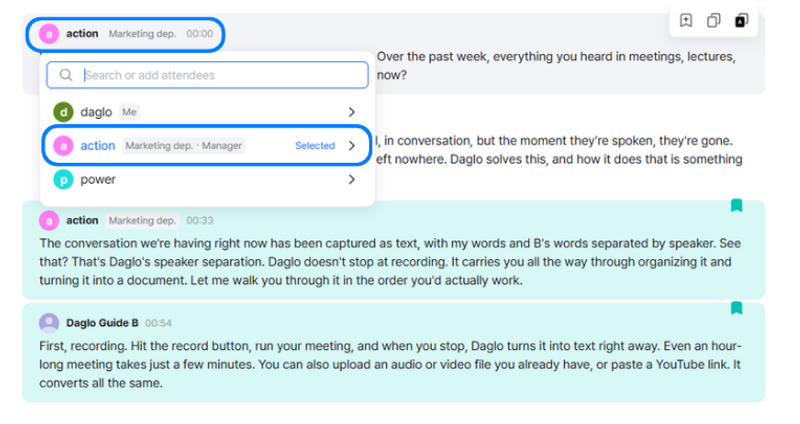
After you update participant information, the participant’s organization is displayed next to their name in the script.
If no organization is entered, this area is left blank.
Once a participant is registered in your workspace, you can use the search feature to easily find that participant or edit their information from other boards as well.
Note: The option to delete participants registered in the participant list is not currently available. This feature is planned for a future update.
Managing Participants in the App
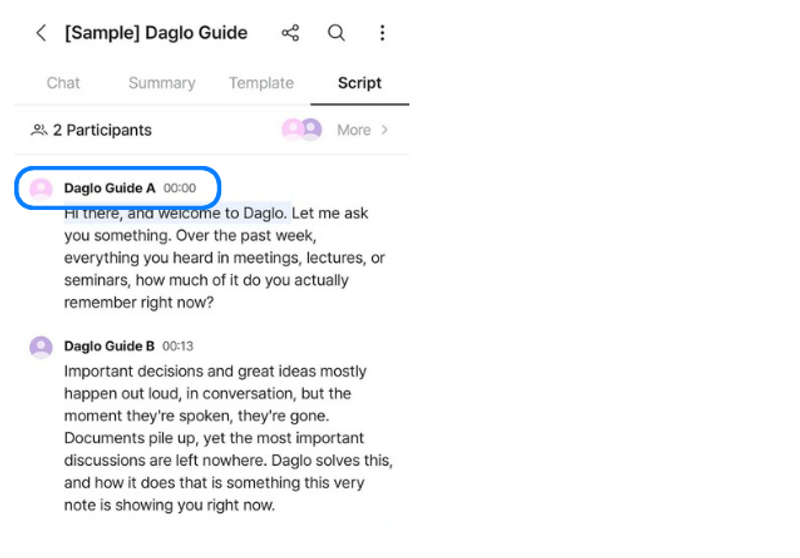
After selecting a board, go to [Script] at the top and select the speaker you want to change.
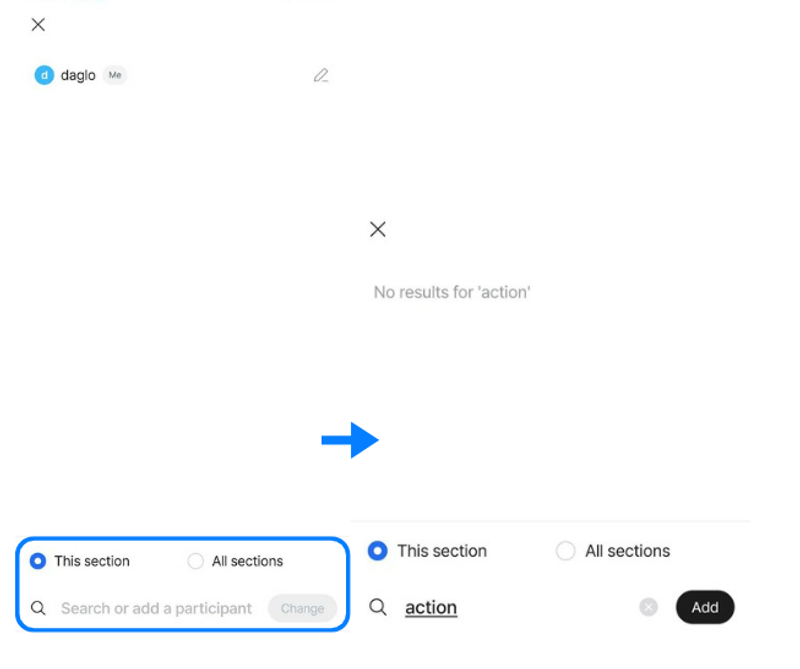
Enter the name you want to register, then tap [Add] to add the participant.
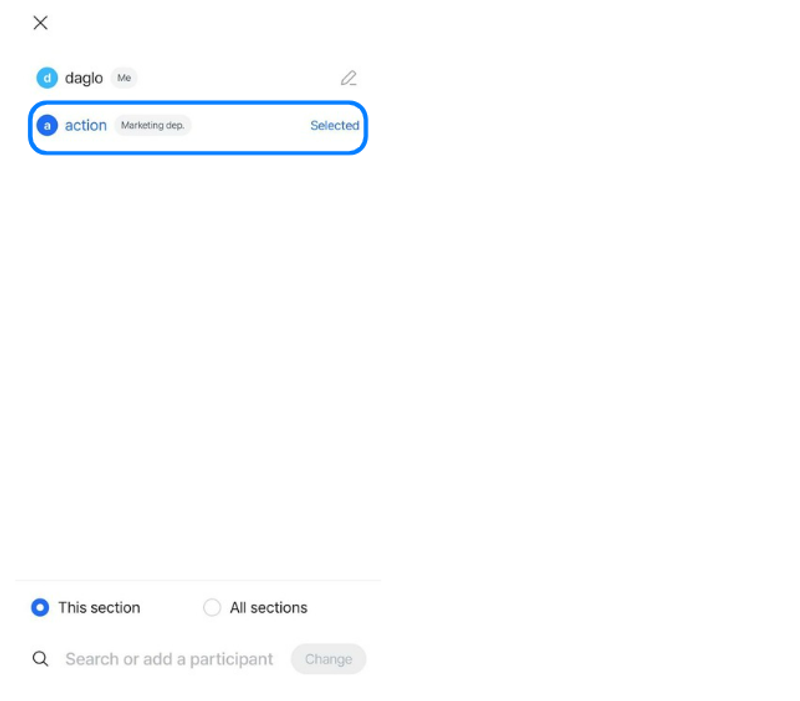
Once registration is complete, you can find the participant in the participant list.
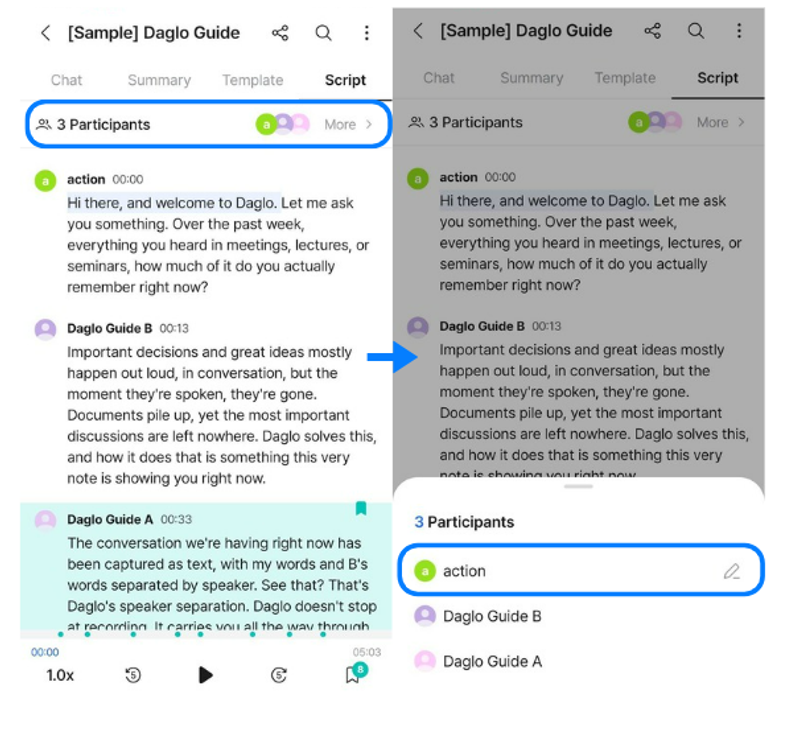
The updated participant name is reflected in the script immediately.
Select [More] on the right side of the participant list to view the list available in the current transcript.
Select the pencil icon to the right of the participant whose information you want to edit.
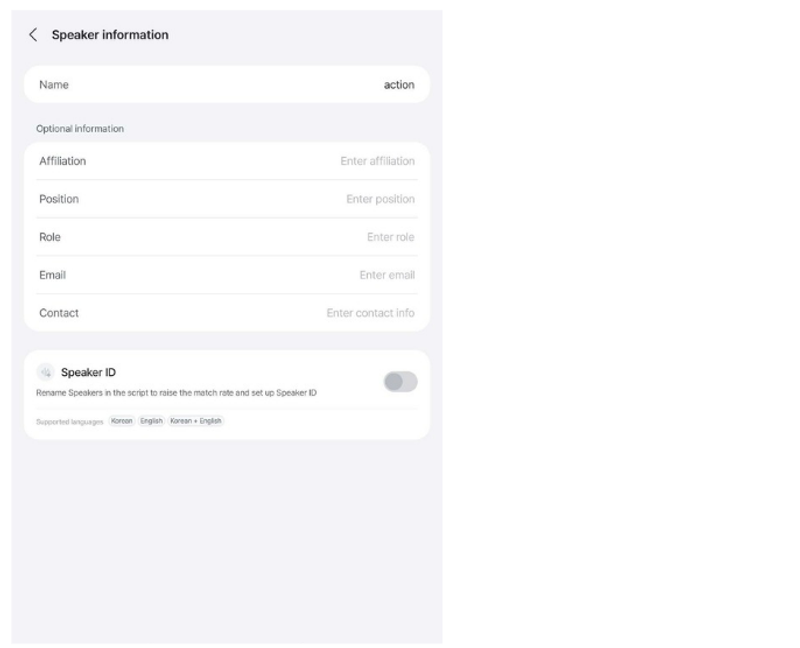
Enter the participant’s name and any optional information, such as organization and job function.
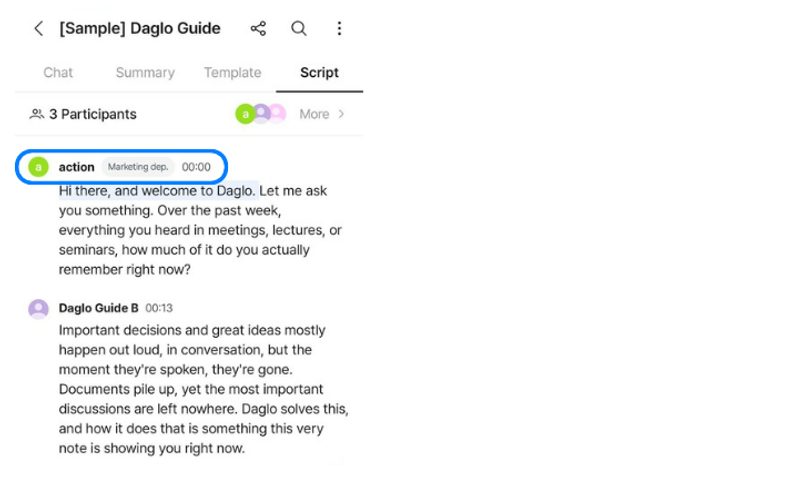
When you return to the transcript, the participant’s organization is displayed next to their name.
What is Speaker ID?
Speaker ID is a feature that allows AI to remember a speaker’s voice and automatically identify and label them by name in future transcriptions.
When you repeatedly assign a speaker in a transcript to a registered speaker, the AI learns their voice.
Speakers with Speaker ID enabled can be automatically identified starting with the next transcription, but sufficient voice data must be collected for reliable matching.
Speakers identified through Speaker ID have an “AI” label to the right of their profile icon in the transcript.