
Document translation
What Is Document Translation?
You can easily translate documents created or analyzed in Daglo into other languages.
This feature is useful when you need to understand foreign-language content or prepare multilingual materials.
Ways to Use It
- Transcribe a conference video in a foreign language, then translate the full transcript into your preferred language to better understand the content.
- Translate meeting minutes written in English to share them with team members who speak other languages.
- Analyze a research paper written in a foreign language in PDF format, then translate the full text into Korean for a deeper understanding.
Translating Documents on the Web
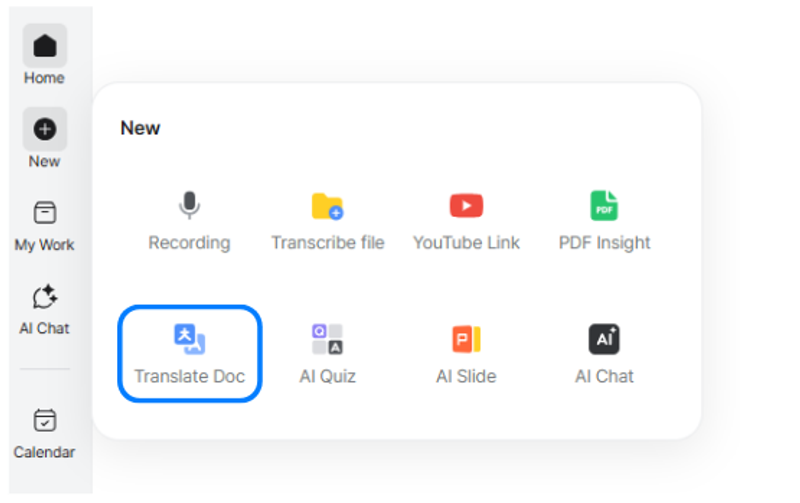
Select [New] > [Translate Doc].
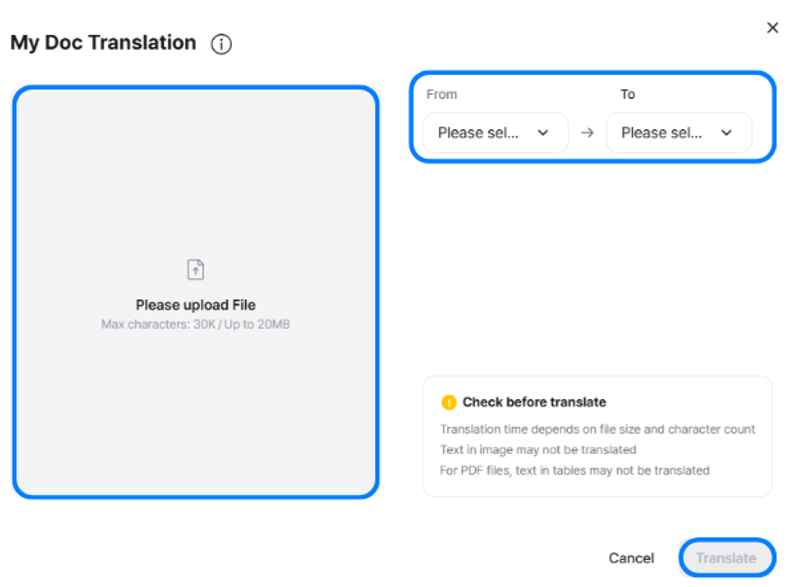
1) Click the upload area to attach the file you want to translate, or easily upload it by dragging and dropping.
2) Select the source language and the language you want to translate into.
3) Once the file has been uploaded successfully, click [Translate] in the lower-right corner to begin translation.
Checking Progress and Downloading the Translated File
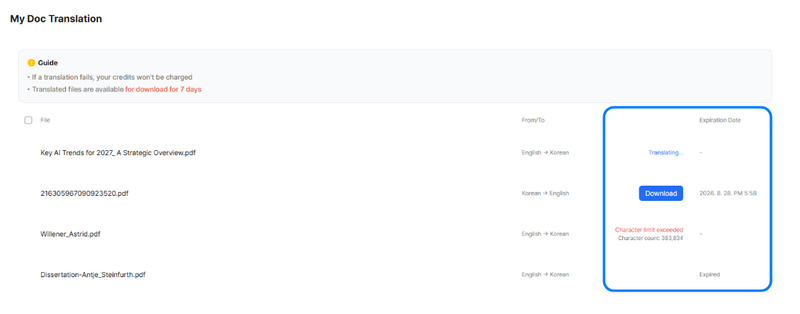
- Once translation begins successfully, a new item is added to the [My Doc Translation] list and its status is displayed as “Translating.”
- When translation is complete, a download button appears in place of the “Translating”
- Click [Download] to download the translated document.
The download expires and is no longer available seven days after translation is completed.
Translating Documents in the App
You can translate documents in the app using any of the following paths:
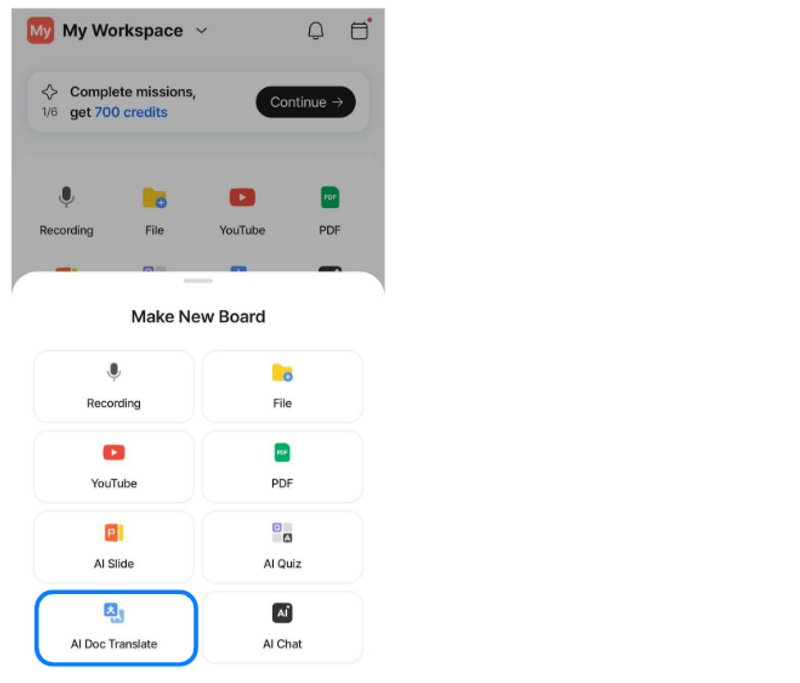
1) Home > Quick Actions > Translation
2) Home > Create (+) in the bottom navigation bar > AI Doc Translate
3) My Work > AI Doc Translate
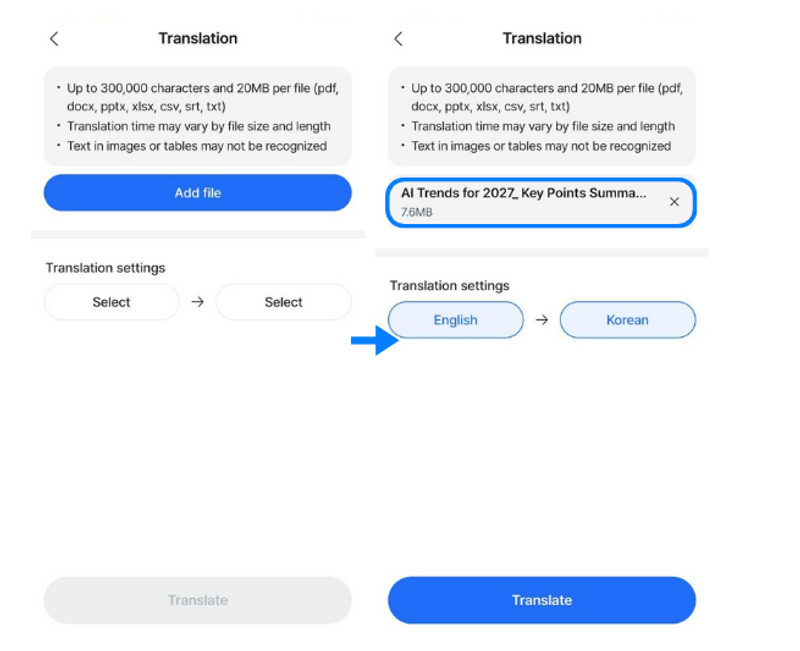
Tap Add file at the top of the screen to select a file you want to translate.
After adding a file, select the source language and the target language.
Once the file and language settings are ready, tap Translate at the bottom of the screen to start document translation.
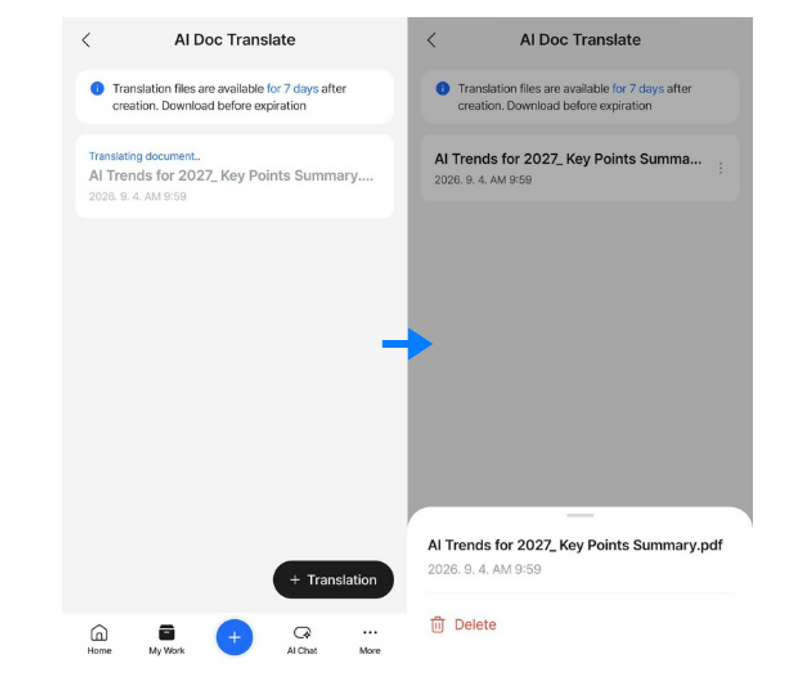
After translation begins, you can check its progress in My Work > AI Doc Translate from the bottom navigation bar.
Once the translation is complete, tap the menu button (three dots) to delete the translated document.
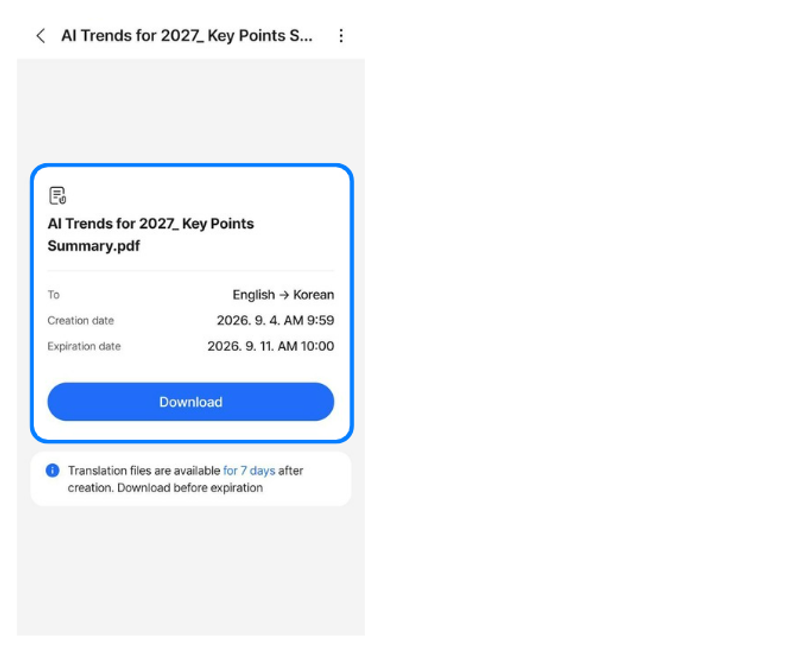
Tap a completed translation to view its details and you can download the translated file upon tapping on Download button.
Note: Translated documents are available for download for 7 days from the date the translation is completed, so please download them within this period.