
Speaker ID
What is Speaker ID?
Speaker ID is a feature that allows AI to remember a speaker’s voice and automatically identify and label them by name in future transcriptions.
When you repeatedly assign a speaker in a transcript to a registered speaker, the AI learns their voice.
Speakers with Speaker ID enabled can be automatically identified starting with the next transcription, but sufficient voice data must be collected for reliable matching.
Managing Speakers and Speaker ID on the Web
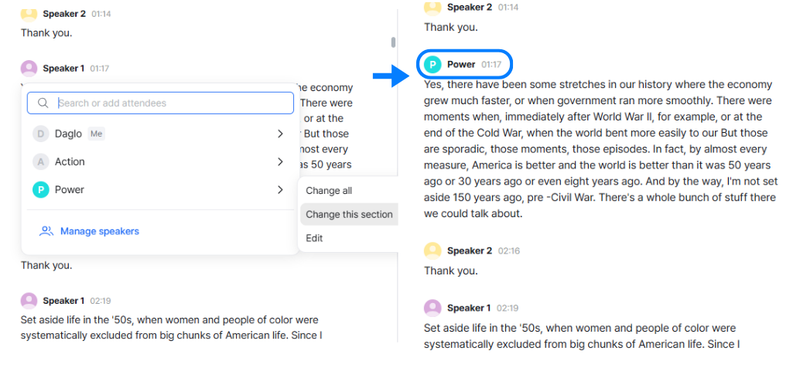
When you change a speaker’s information to a registered speaker in a transcript, the AI collects voice data for that speaker.
Assigning the same speaker across different transcripts allows the AI to collect voice data from a variety of situations, helping it recognize the speaker’s voice more accurately.
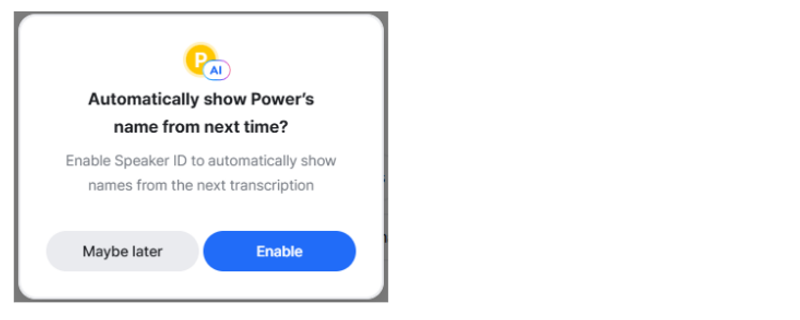
Once the AI has learned sufficient voice data through repeated voice data collection, a window will appear where you can enable Speaker ID for that speaker.

Click [Enable] to enable Speaker ID for the speaker immediately.
Speaker ID will apply starting from the next transcription board.
When the AI identifies the speaker based on their voice data, the speaker will automatically be labeled with their registered name, and an AI badge will appear to the right of their profile icon.
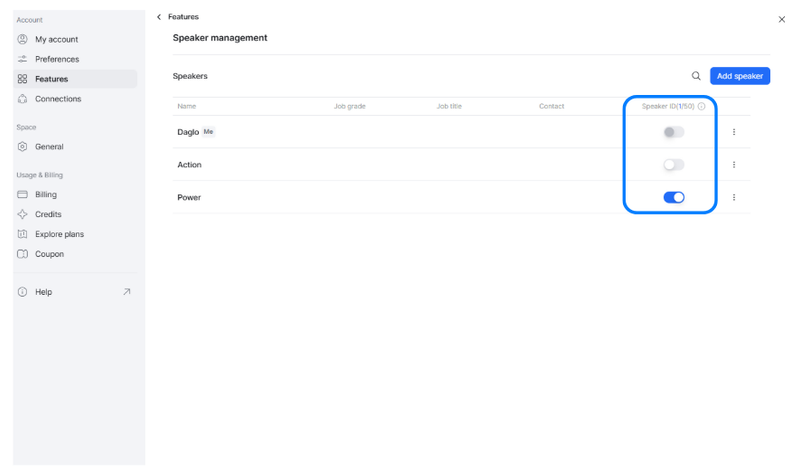
From the home screen, go to Profile Icon (bottom left) > Settings > Account > Features > Speaker management to manage your registered speakers and Speaker ID settings in one place.
- Disable Speaker ID: You can disable Speaker ID for a speaker on this page.
- Edit or Delete a Speaker: Click the menu button (three dots) to the right of a speaker to edit their information or delete them.
※ “Me” cannot be deleted.
Speaker ID Limits by Plan
The number of speakers you can register for Speaker ID depends on your plan.
- Free: 1 speaker
- Pro: 5 speakers
- Premium: 50 speakers
- Team: 100 speakers
※ Notes
- Speaker ID is available for Korean, English, and Korean + English transcriptions.
- Sufficient voice data must be collected for the AI to recognize a speaker’s voice and apply Speaker ID.
- Speaker ID may be enabled more quickly when the speaker talks frequently and their voice is captured clearly. Recording quality and environment may also affect recognition.
- Collecting voice data from a variety of environments and situations, rather than only in the same setting, can help Speaker ID be enabled more quickly.
- Speaker ID may not work smoothly if the recording environment or device changes. In this case, please manually update the speaker to the correct participant name to help improve voice matching accuracy across different environments.
- Voice data can be learned from transcription boards created on or after October 15, 2026. Changing a speaker to a registered speaker in boards created before this date will not automatically train the AI on their voice.
- To train voice data for Speaker ID using a board created before October 15, 2026, please retranscribe the board and then assign the speaker to the relevant registered speaker.
- If you switch to a plan with a lower Speaker ID limit, Speaker ID will be disabled in order, starting with the speaker who most recently used Speaker ID.
Managing Speakers and Speaker ID in the App
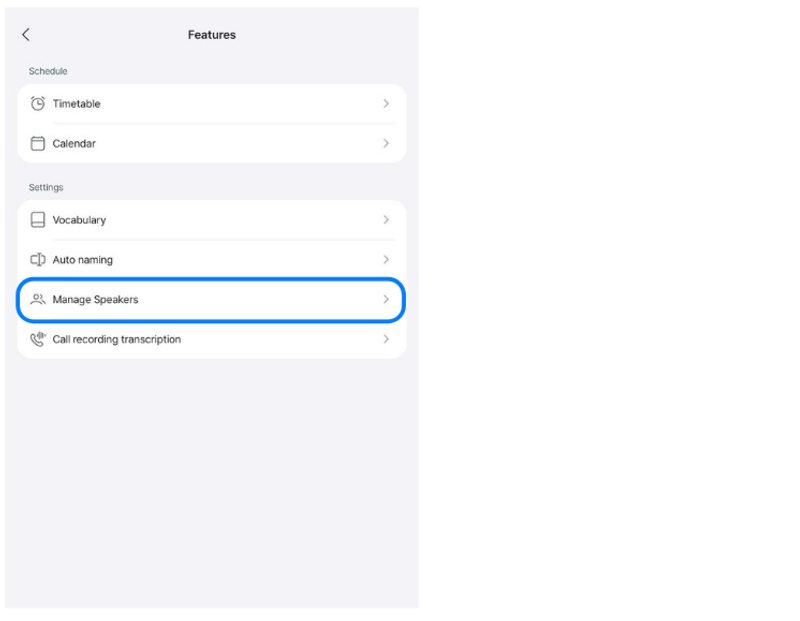
In the app, go to More (bottom right) > App Settings > Features > Manage Speakers.
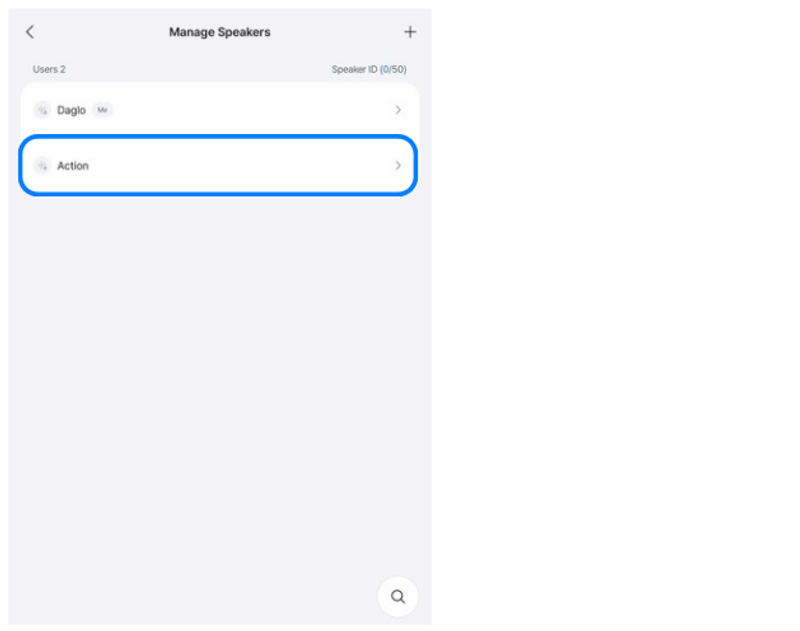
Tap the magnifying glass icon in the bottom-right corner to search for a registered speaker by name.
Select the speaker whose information you want to edit or whose Speaker ID settings you want to change.
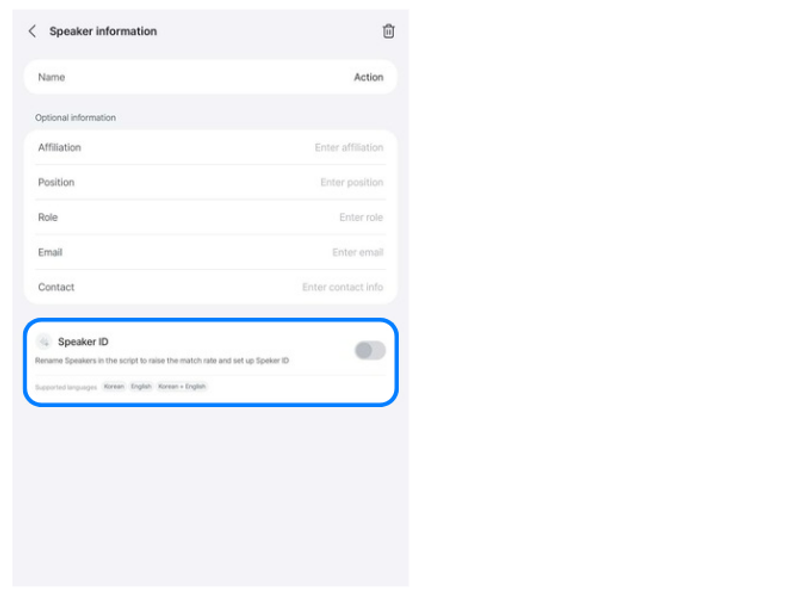
On the selected speaker’s details screen, you can edit their information, delete them, or view and change their Speaker ID settings.