
Recording Transcription
Record meetings, interviews, or lectures directly on your PC or smartphone, then convert the recording to text as soon as you finish.
Get Started
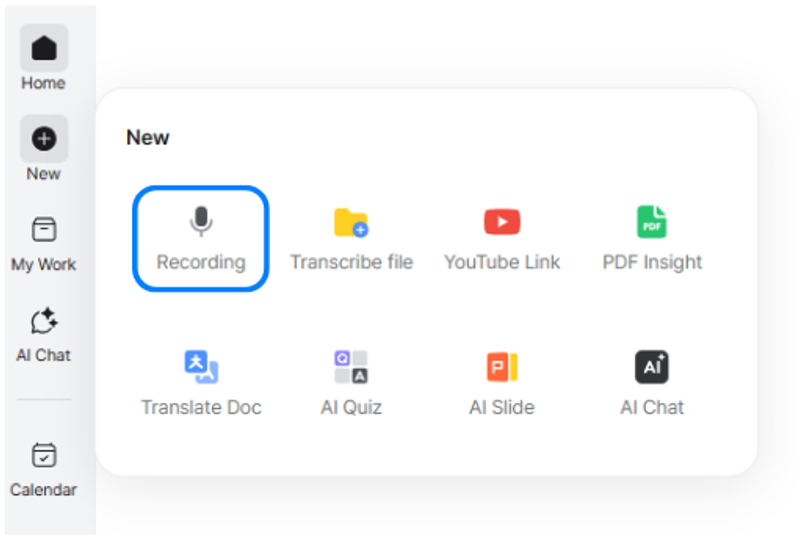
Click [New Task] > [Recording Transcription].
Start Recording
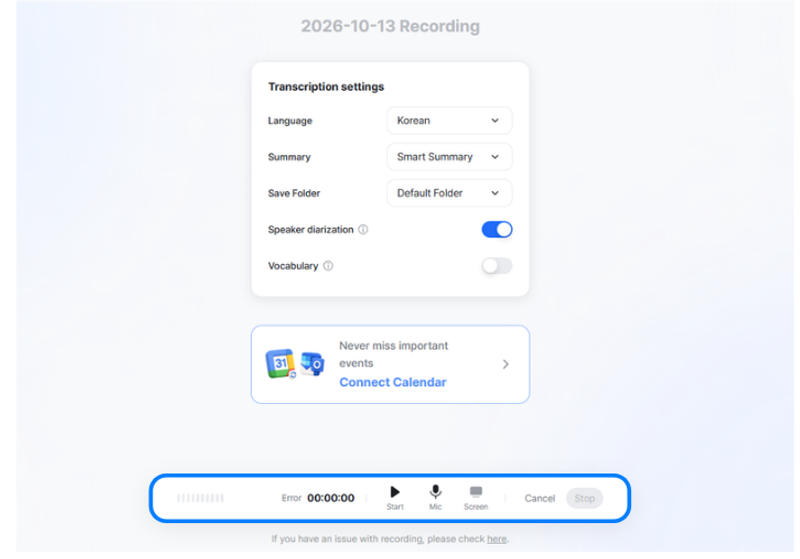
Click Recording Transcription to start recording automatically.
You can check the volume meter and the “Recording” indicator at the bottom.
Change the microphone
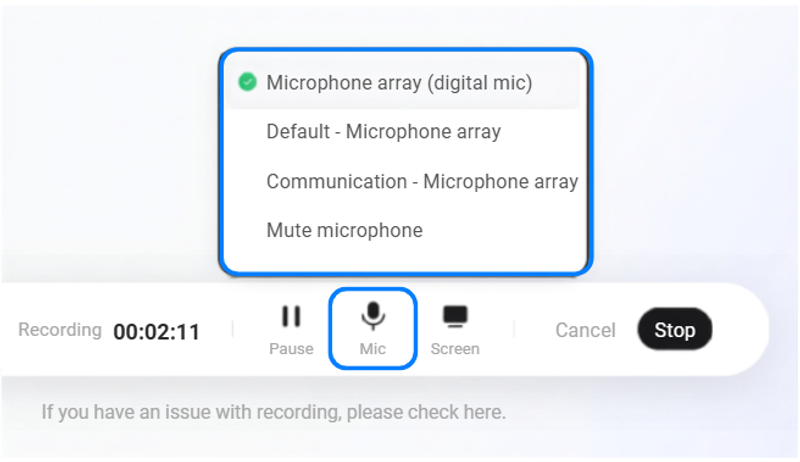
- Click the microphone button to change the microphone used for recording.
Note: Only connected microphones for which permissions have been configured can be used.
Screen sound recording
Click the Screen button to record the screen sound you are currently viewing.
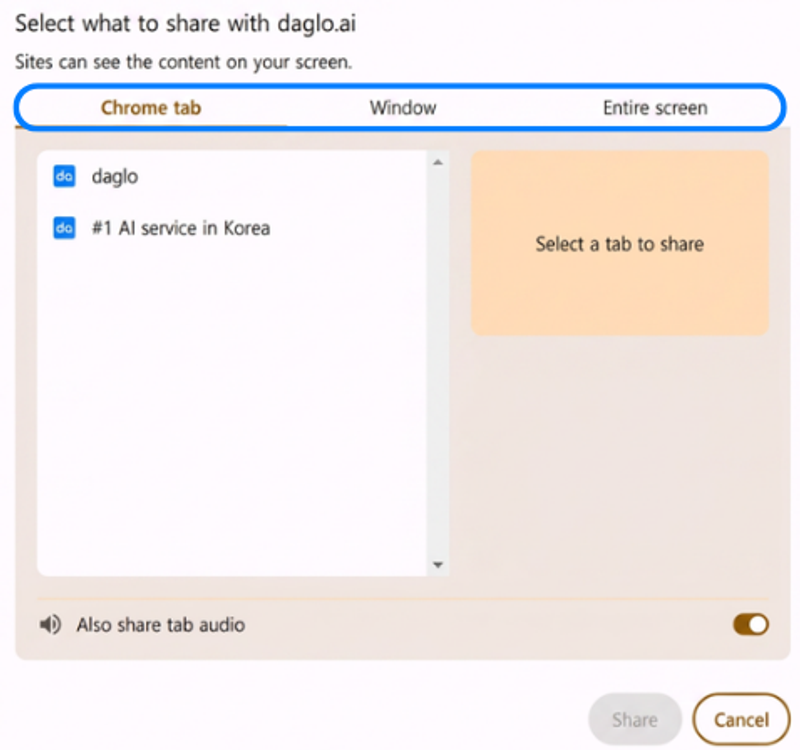
- Select a Chrome tab, window, or entire screen to record.
- You can include system audio from the selected tab, window, or screen.
To record audio during screen sound recording, turn on [Also share tab (system) audio] at the bottom.
Pause and End Transcription

- If there is a long pause or a section you do not need to record, click Pause to temporarily stop recording.
- When you have finished recording the desired portion, click End to finish the recording transcription.
Notes
- If the microphone meter in the lower-left of the bottom bar does not move when recording begins, check microphone permission and whether the microphone is muted.
- When recording on the web, refreshing or closing the browser window may result in lost recordings.
💡Tip! For more accurate recordings, speak clearly near the microphone in a quiet environment.
Transcribing Recordings in the App
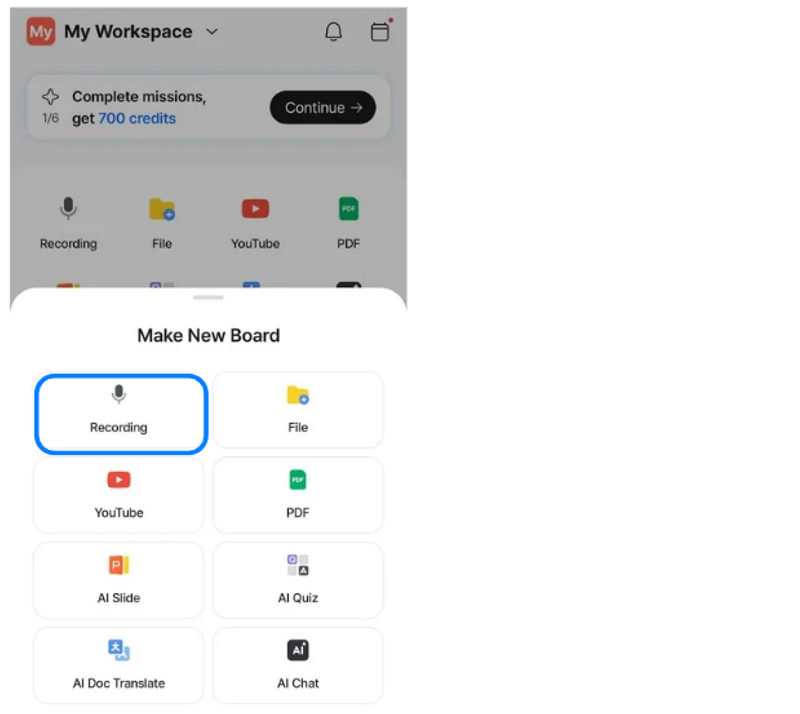
To get started, tap Recording in the Quick Actions menu on the Home screen, or tap + at the bottom of the screen > Recording.
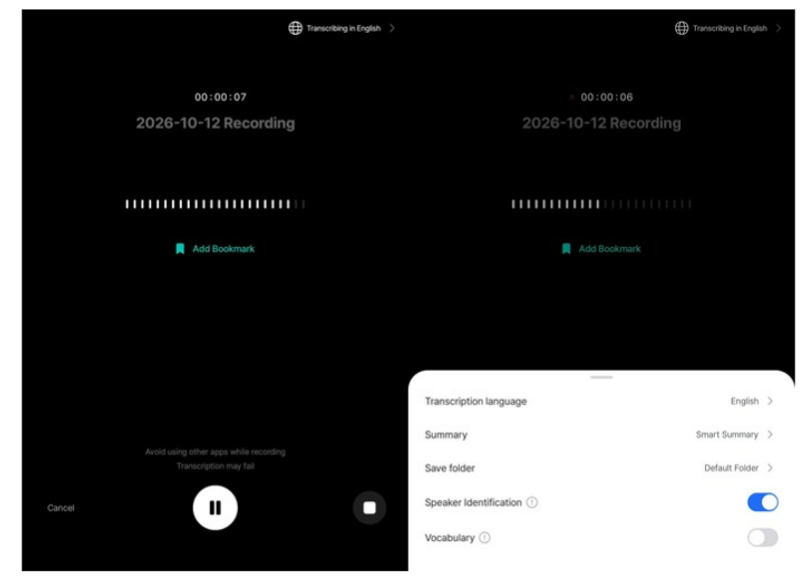
Tap Record to start recording immediately.
Tap the > button in the banner at the top-right to configure transcription options.
In Options, you can set the transcription language and the folder where the transcription will be saved.
You can also choose whether to use speaker separation and a custom vocabulary.
Note: You can add or view your custom vocabulary under More (bottom-right of the navigation bar) > App Settings > Features > Settings > Vocabulary.
When the custom vocabulary option is enabled, transcription will reference the words you have added.
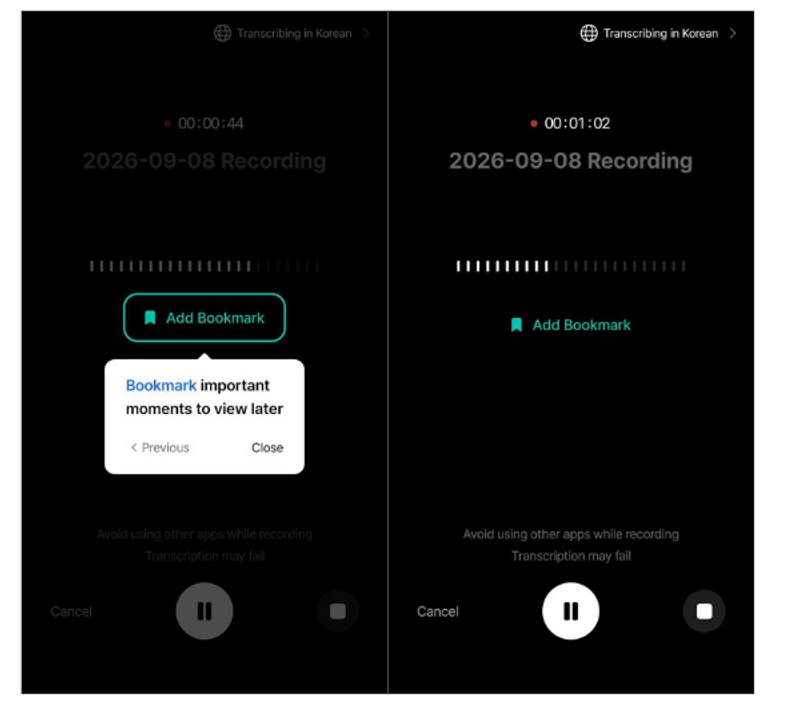
While recording, tap Add Bookmark in the center of the screen to easily locate the bookmarked section (paragraph) in the script after transcription is complete.
If you need to pause during recording, tap the Pause button at the bottom center of the screen.
Tap it again to resume recording.
Tap the square button in the bottom-right corner to stop recording.
Your completed transcription can be found in My Work > All Boards, or in the selected folder if you designated one.