
AI Slides
What Is AI Slide?
Create presentation-ready PowerPoint (PPT) slides in seconds by entering the content you want, either based on meeting minutes or lecture materials, or with no reference material at all.
AI analyzes the key points of the text and automatically creates a draft slide deck.
Ways to Use It
- Turn meeting minutes into presentation materials to share with your team.
- Review a long lecture or seminar with slides that summarize only the key points.
- Quickly create a slide outline from the key points of a report or proposal.
Creating AI Slides on the Web
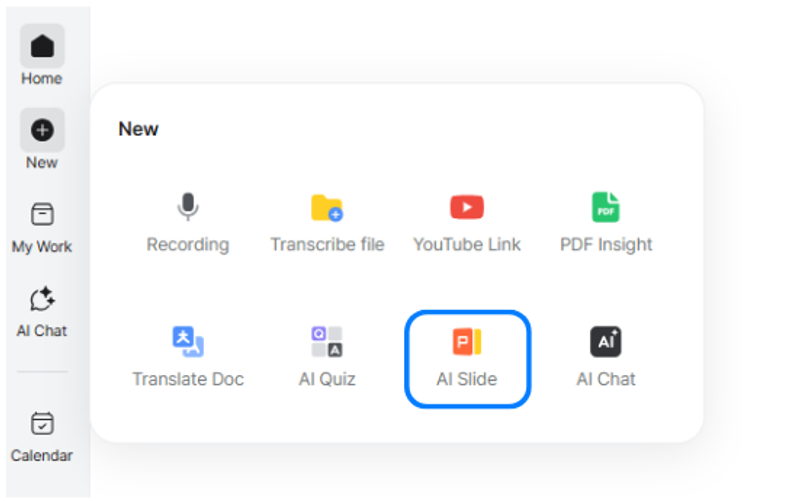
Select [New] > [AI Slide].
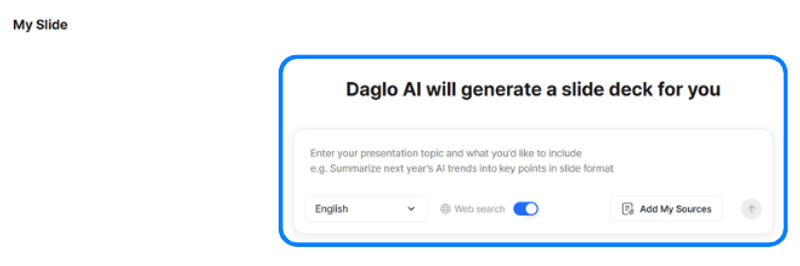
- Type the content you want to turn into slides directly, or add materials to create slides.
- In the creation window, you can select the language for the slides or add reference materials.
- Turn on web search to have AI find up-to-date information related to your input and enrich the slide content.
- At the bottom of the input window, you can view sample slides and previous tasks.
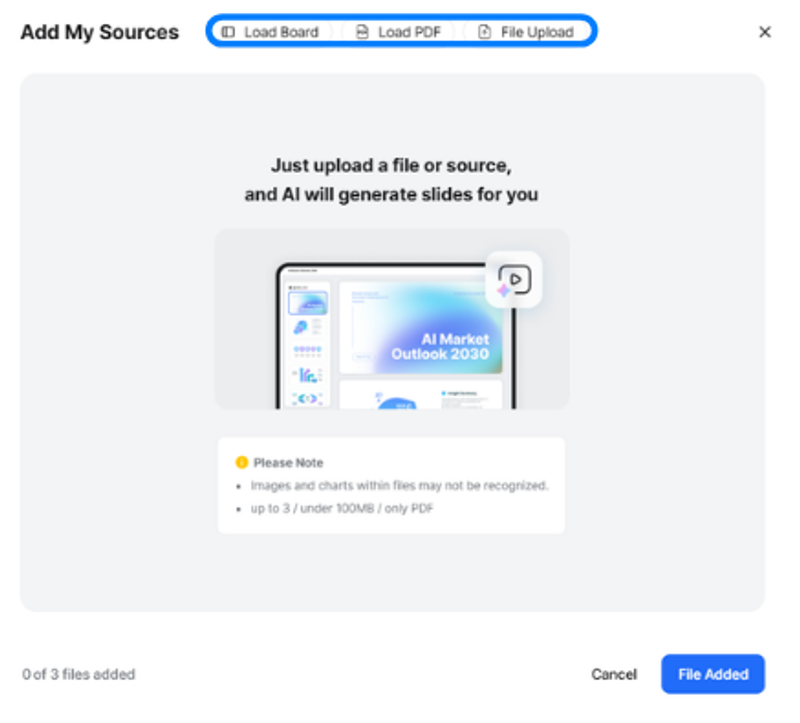
- Attach materials for slide creation by selecting Load Board, Load PDF, or Upload File.
- Once you have added all necessary materials, click [Finish Adding Materials] in the lower-right corner.
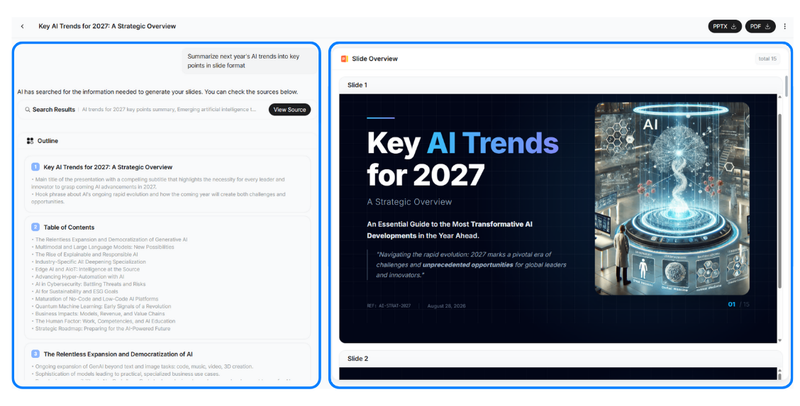
1) Based on the content you entered or the materials you attached, a slide outline and key content are generated on the left.
2) Once the outline and content are generated, slides are created on the right based on that content.
3) Click the button in the upper-right corner to download the completed slides as a PPTX or PDF file.
Creating AI Slides in the App
You can create AI Slides in the app using any of the following paths:
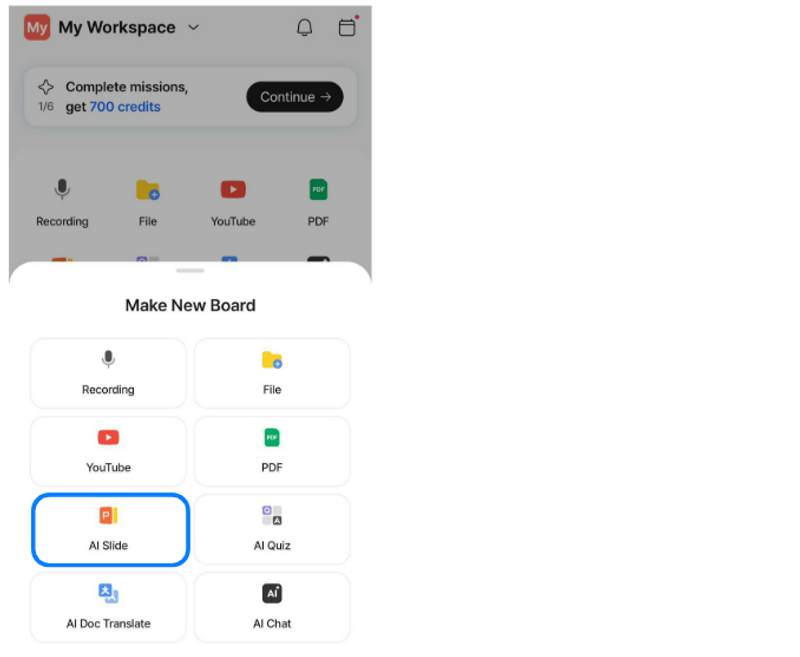
1) Home > Quick Actions > AI Slide
2) Home > Create (+) in the bottom navigation bar > AI Slide
3) My Work > AI Slide
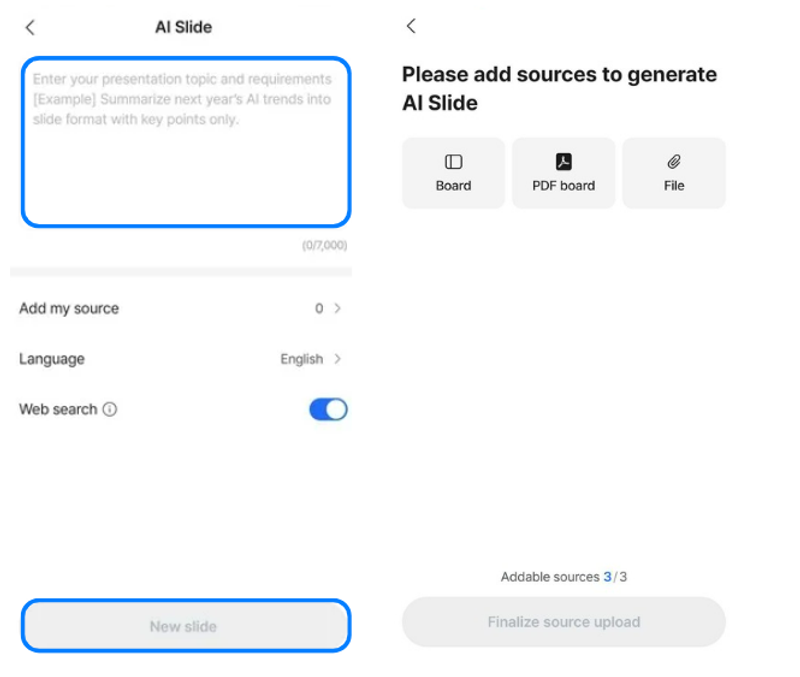
Enter the content you want to turn into slides, or add reference materials through Add my source to generate slides.
- In Add my source, you can select and add the materials you want to reference, including board content, PDF analysis results, and files.
- You can add up to three materials in the app.
After adding your desired materials, tap Finalize source upload to complete the process.
Turn on Web Search to let AI find the latest information related to your input and create richer slide content.
Once you have finished all settings, tap New slide to generate your slides.
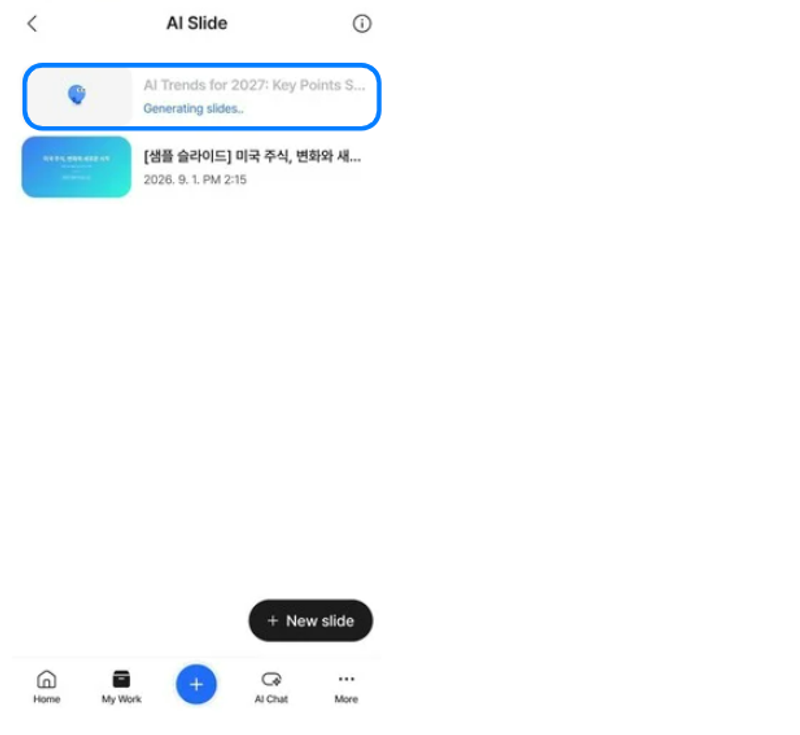
Once slide generation begins, the status will be displayed as Generating slides, as shown above.
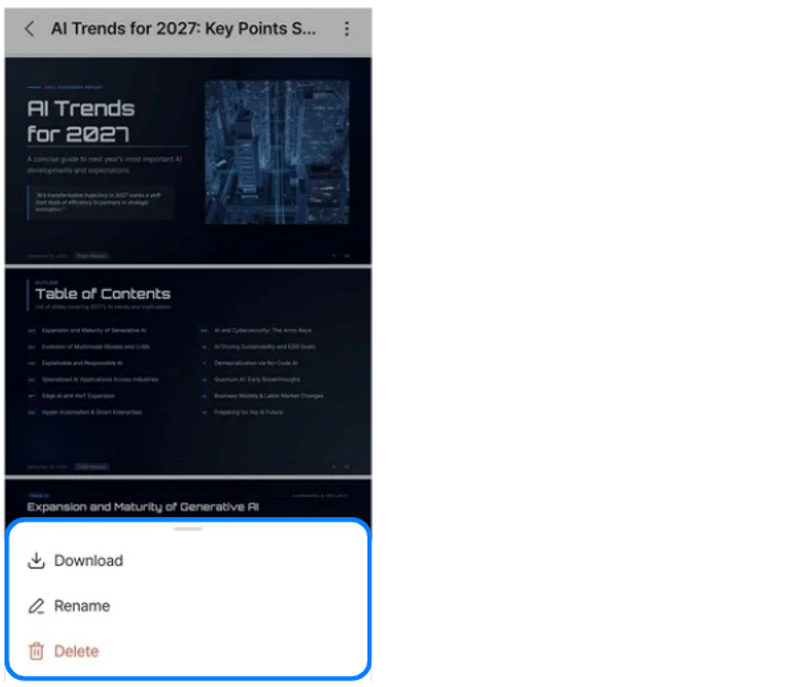
Tap a completed slide deck to view its contents. Tap the menu button (three dots) in the top-right corner to open a bottom-sheet menu, where you can download, rename, or delete the slide deck.