
Use Daglo in Hancom Office Hangul
With the Daglo add-on, you can view scripts and transfer meeting content directly into your documents in Hangul without opening multiple windows.
[Go to Install the Hancom Daglo Add-on]
Getting Started
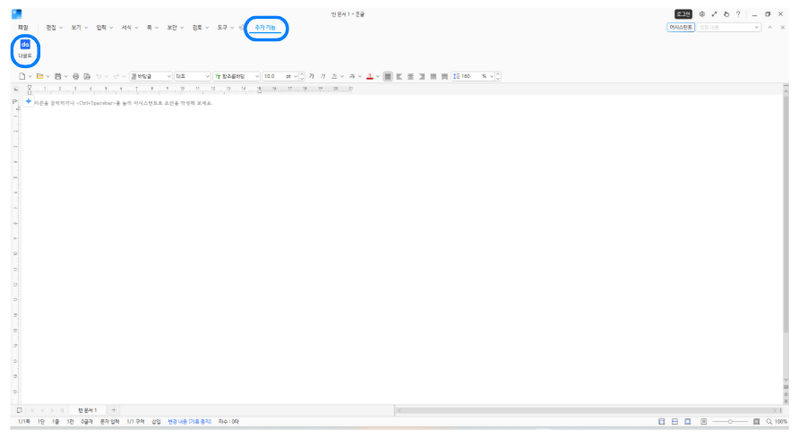
After launching Hangul, click [Add-ons] > [Daglo] from the top menu to open the Daglo add-on.
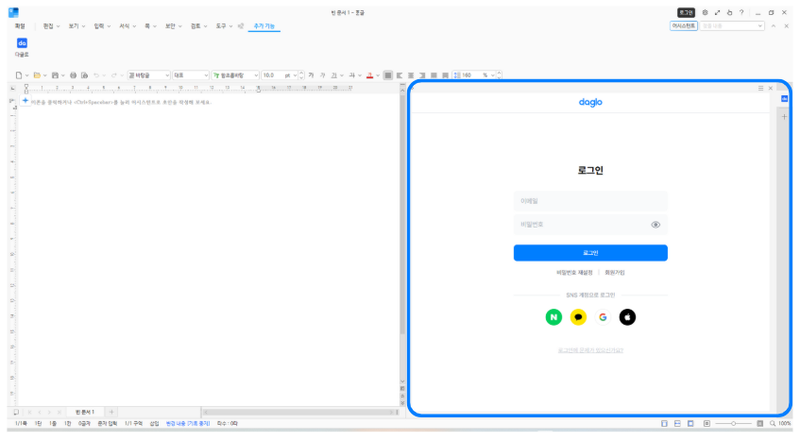
Create a new account by signing up, or log in with your existing Daglo account.
Note: If you log in with an account you have used before, you can access the board data saved in that account.
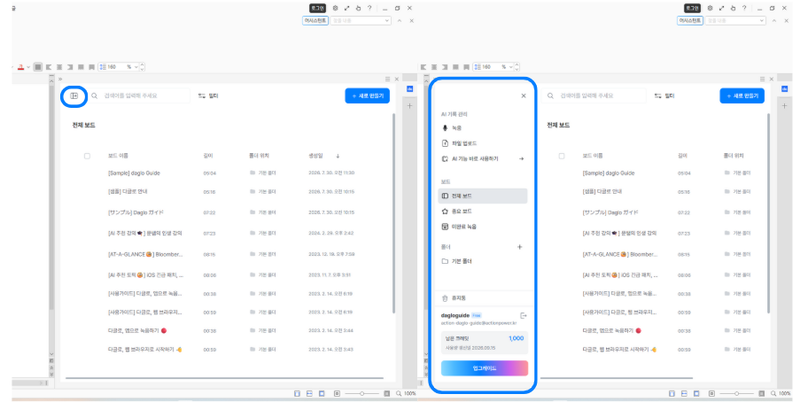
Once you log in, a list of all boards saved in your account is displayed.
Click the icon on the left side of the input field at the top to view a menu containing your account information and other options.
Note: Clicking [Use AI Features Now] in the menu will take you to the Daglo Web page.
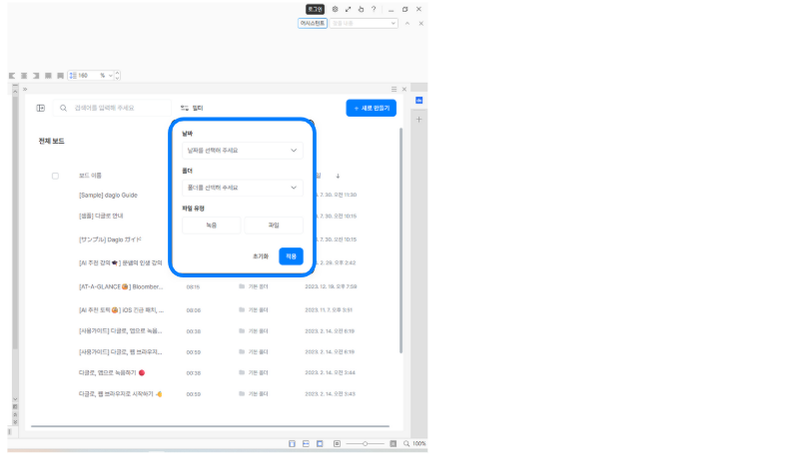
Click [Filter] on the right side of the input field at the top to filter and view boards by a specific date, folder, or file type.
Recording and File Transcription
You can also use the Daglo add-on in Hangul to access recording transcription and file transcription features.
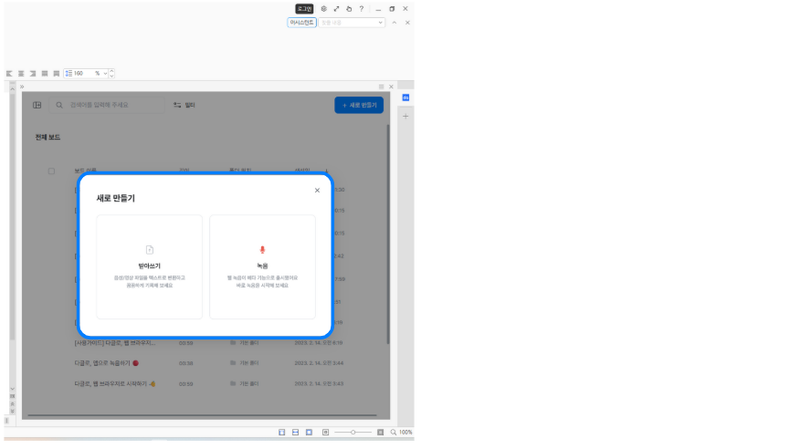
Click [Create New] in the upper-right corner of the Daglo add-on, then choose either a file or recording transcription method.
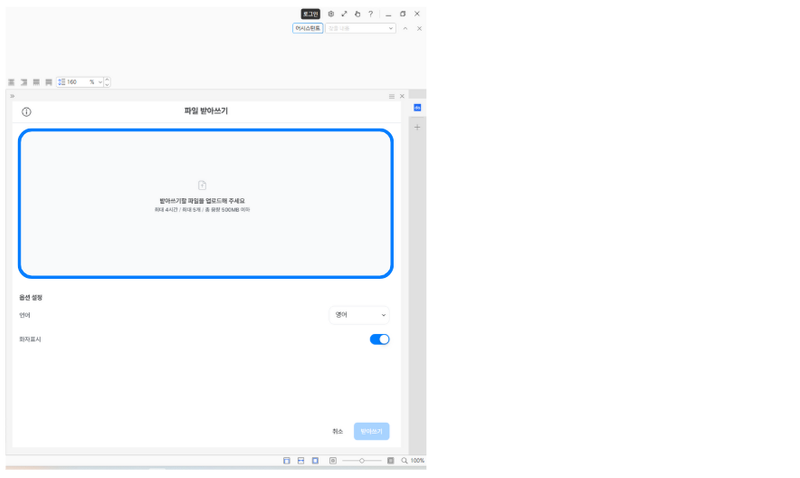
Select [Transcribe] to start a file transcription.
Upload the file you would like to transcribe, configure the transcription options, and then click [Transcribe] in the lower-right corner to begin transcription.
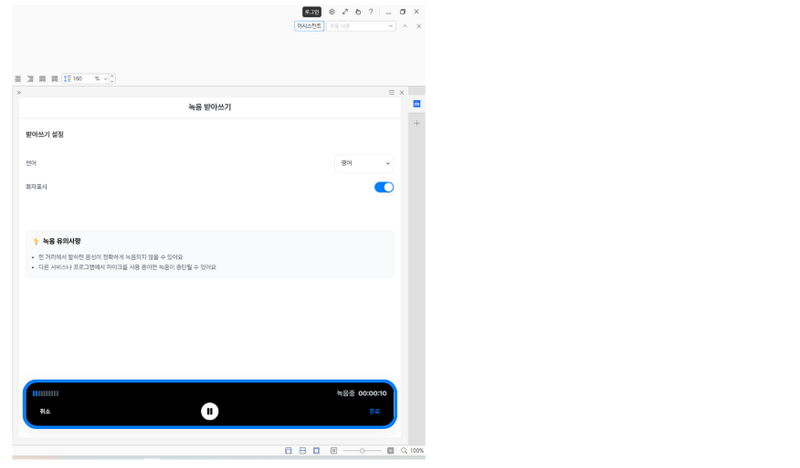
Select [Record] to start recording transcription.
You can configure transcription options at the top of the screen and check the recording duration in the bar at the bottom.
Click [Cancel] in the lower-left corner to cancel the recording.
Click the button in the center to pause or resume recording, and click [End] in the lower-right corner to finish the recording.
Viewing AI Summaries and Scripts
Click a board to view its AI summary and script.
You can also view bookmarked items from the script separately in one place.
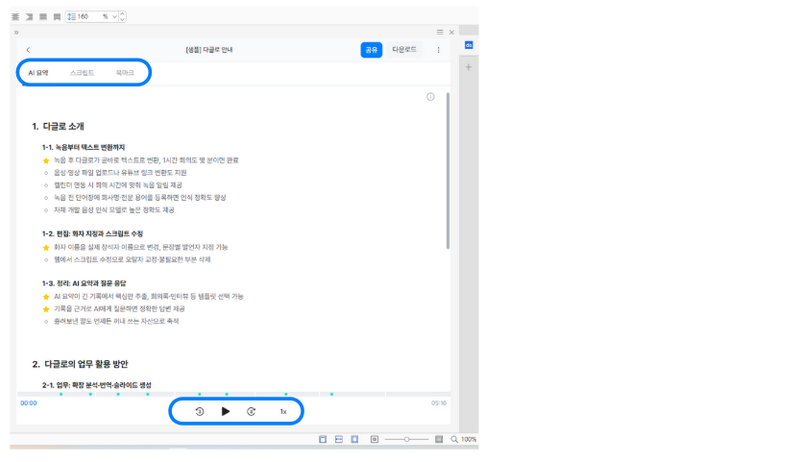
The AI Summary displays an AI-generated summary of the content from a transcribed board.
Use the playback button at the bottom of the screen to listen to the audio while reviewing the content.
You can also adjust the playback speed.
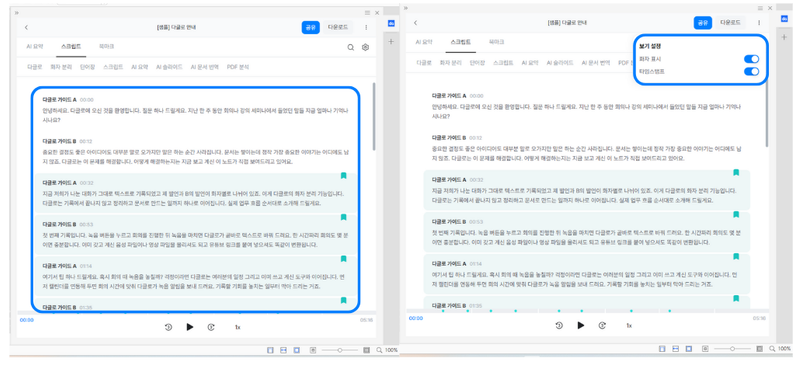
On the Script screen, you can view the complete script for a transcribed recording or file.
Click the Settings menu (gear icon) in the upper-right corner to configure speaker labels and timestamp display options.
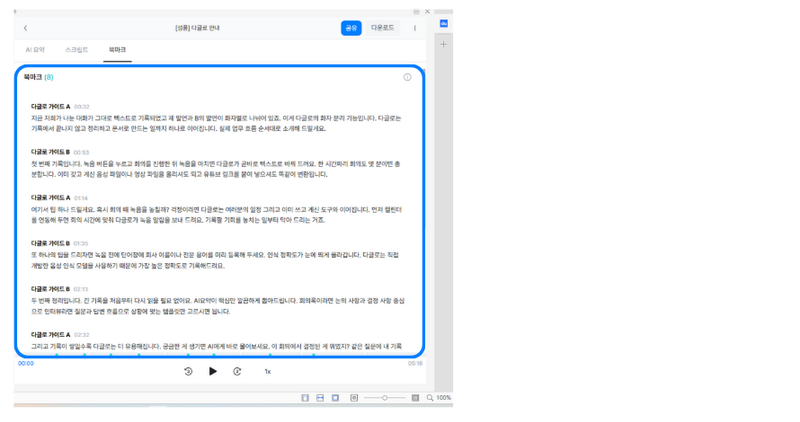
If there is an item in the script that you would like to review separately, hover over the upper-right corner of the relevant paragraph and add a bookmark.
You can view all added bookmarks together on the Bookmarks screen.
Creating Meeting Minutes and Exporting to Hangul
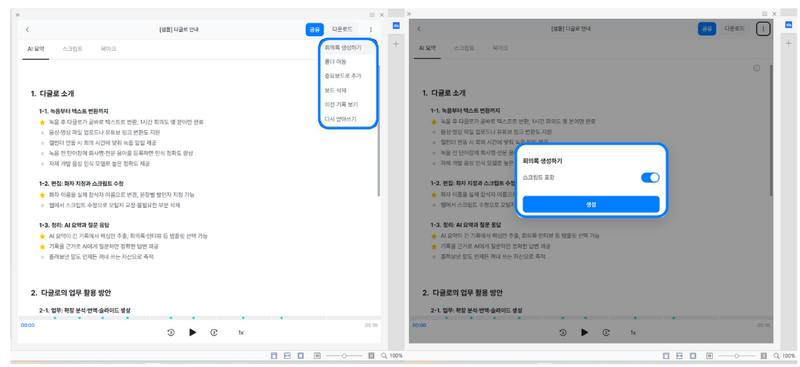
You can export board content to a Hangul document for immediate review.
From the menu (three dots) in the upper-right corner of the board you want to export, click [Create Meeting Minutes].
Then select whether to include the script and click [Create].
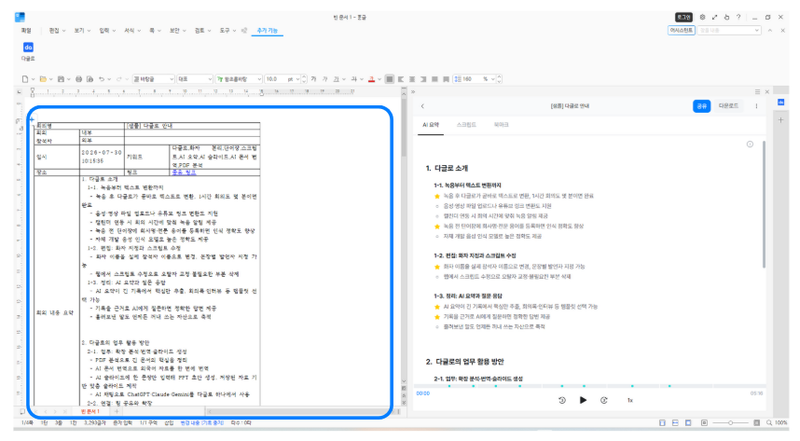
Meeting minutes are generated in a format that can be viewed directly in a Hangul document.
If you create meeting minutes that include the script, the AI summary appears at the top, followed by the full script below.