
daglo Chat
What is daglo Chat?
daglo Chat lets you search across boards with completed transcriptions and chat with AI based on their content.
You can find or summarize information across multiple boards at once, without opening each board and reviewing its content individually.
You can also organize meeting decisions and tasks, prepare an agenda for your next meeting, or draft emails based on meeting content.
Turn on web search to research related information, or connect Notion and Slack to continue your post-meeting work.
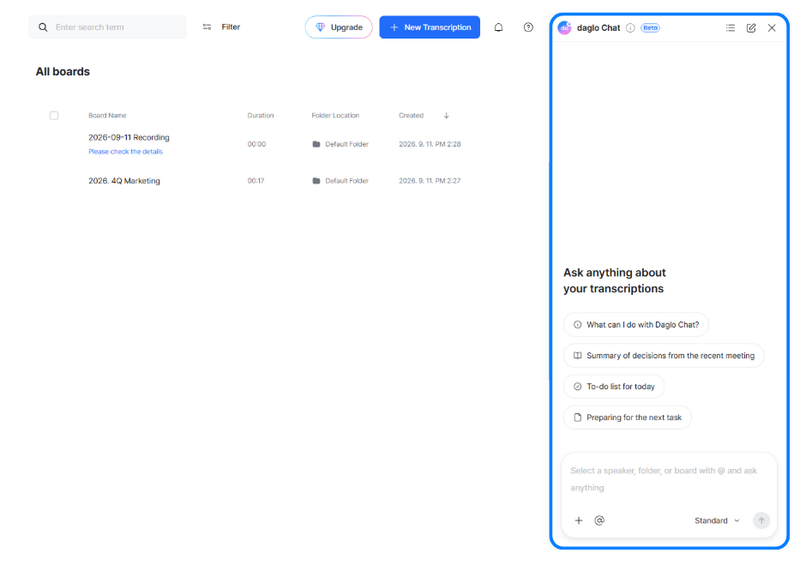
On the web, daglo Chat is available on the right side of the screen.
Click the X button in the top-right corner of daglo Chat to minimize the window.
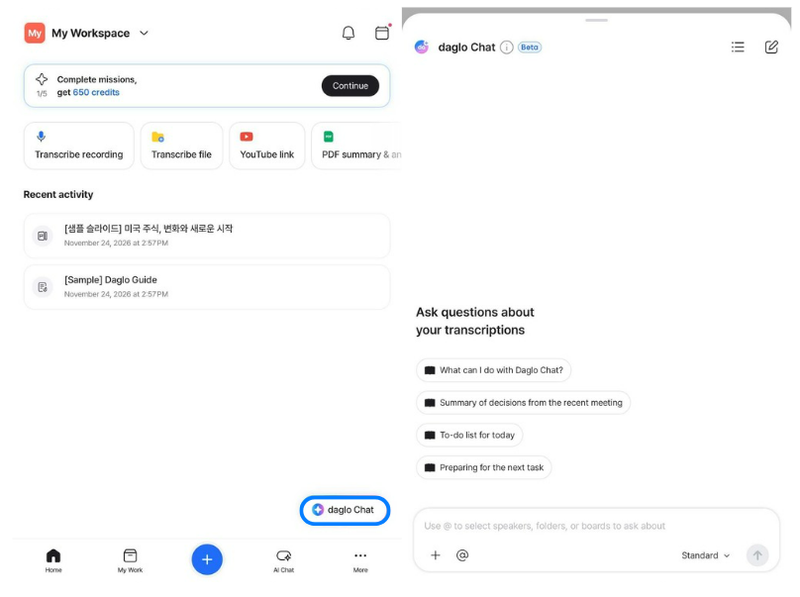
In the app, tap the banner in the bottom-right corner of the screen to open daglo Chat. Swipe down on the daglo Chat screen to close it.
Asking Questions
Enter your question in the input field at the bottom of daglo Chat, then send it.
In addition to finding or organizing information recorded in your boards, you can ask daglo Chat to draft new documents based on that content.
For example, you can ask:
- Summarize the decisions made in recent meetings.
- Organize the tasks from this week’s meetings by assignee.
- Prepare an agenda for the next meeting based on our last meeting.
- Draft a customer email based on what we discussed in the meeting.
Including the information you want to find, the relevant time period, and your preferred output format can help you get the answer you need.
💡 Tip! Be specific. Instead of “Summarize the meetings,” try “Create a table of the decisions made in meetings over the last seven days and the tasks assigned to each person.”
※ You can type or paste up to 30,000 characters, excluding items added as mentions.
Selecting Boards, Folders, and Participants to Reference
In daglo Chat, you can select specific boards or folders to use as references for your question.
You can also select a participant and ask about their comments.
Adding an item to the input field this way is called a mention.
Adding Mentions
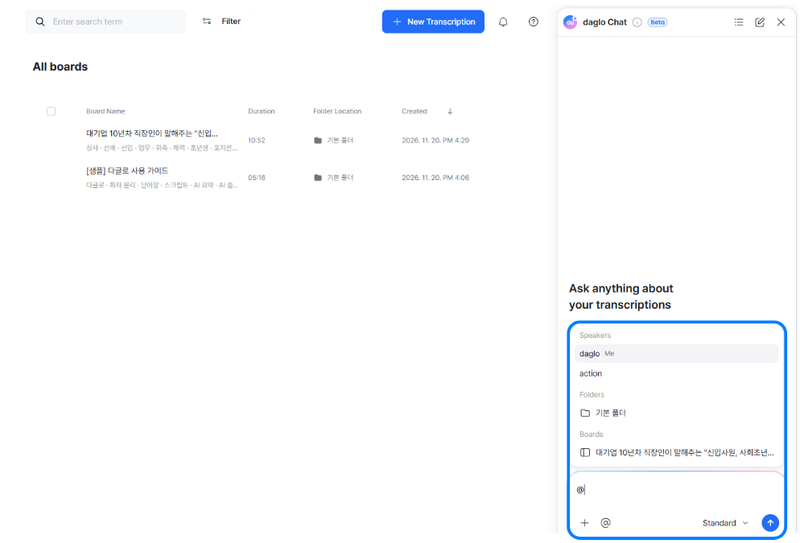
- Type @ in the daglo Chat input field.
- Select a participant, folder, or board from the list.
- Add more items if needed.
- Enter your question about the selected items and send it.
If you do not see the item you are looking for, enter its name or title after @ to search for it.
※ Searching by initial consonants is not supported.
How to Use Each Reference Type
- Select a board: Summarize its content or review its decisions.
- Select multiple boards: Combine information from different boards or compare their similarities and differences.
- Select a folder: Organize information from the boards in that folder.
- Select a participant: Find comments or opinions from a participant assigned in the transcript.
For example, select a board and ask, “Summarize the key points,” or select multiple boards and ask, “Summarize the topics discussed across these meetings and the final decisions.”
If you ask a question without selecting any references, daglo Chat searches for relevant content within the boards available to your current account and space.
※ Questions about participants are based on the participant information assigned in the transcript.
If needed, assign or update participants in the transcript first.
Automatic Board and Folder Selection
If you open a board or folder while in a new chat, before typing or sending a question, that board or folder is automatically added to the input field.
You can use the automatically added reference, or remove it and select something else.
If you are already chatting or composing a question, navigating to another board or folder preserves your existing conversation and draft. The newly opened board or folder is not automatically added.
Changing the Reference Scope
You can add or remove mentions in the input field during a conversation to change which references are used.
Changes apply only to questions sent afterward and do not affect answers that have already been generated.
※ Navigating to a screen other than a folder or board detail screen may clear unsent text and automatic mentions. If you are composing a question, check it before navigating away.
Selecting Multiple Long Boards
daglo Chat can use up to approximately four hours of combined transcript content from boards you directly mention.
If the total length exceeds this limit, boards are referenced in the order they were added, up to the limit. Some boards may be excluded from the answer, in which case a notice will appear in the response.
💡 Tip! If an important board was excluded, select that board separately or split your boards into smaller groups and ask separate questions.
Viewing Answers
Checking Response Progress
After sending a question, you can check daglo Chat’s progress as it finds relevant content and prepares an answer.
Response times may vary depending on the amount of reference material and the requested task.
When daglo Chat Asks a Follow-Up Question
If your request is unclear, daglo Chat may ask for more information before answering.
Select one of the suggested responses on the screen, or type your own response in the input field at the bottom.
daglo Chat will continue based on the information you select or enter.
Checking Sources
When daglo Chat uses boards or external materials to answer your question, you can check the original content through the sources shown in the response.
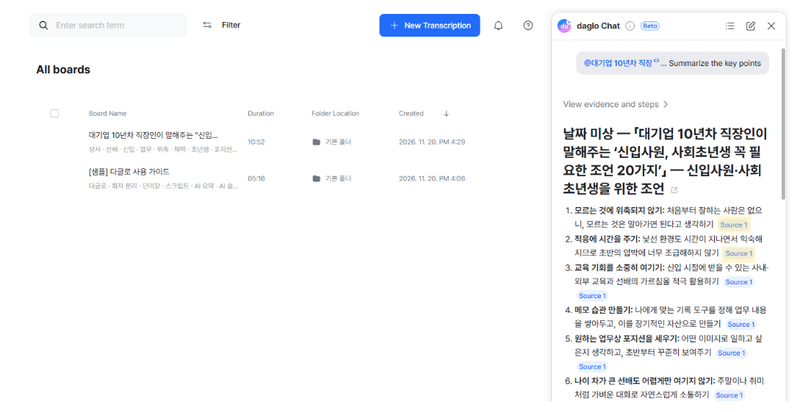
- Board sources: Select a citation to open the corresponding transcription board.
- Web, Notion, and Slack sources: Select a citation to open the referenced material in your web browser.
Your current daglo Chat conversation is preserved even if you follow a source citation to another board.
※ Board source citations open the corresponding board. When using a web browser, they take you to the relevant paragraph or timestamp in the transcript.
※ AI-generated answers may contain inaccuracies. Verify important decisions, figures, and other details against the original sources.
Using Web Search
Turn on web search if you need up-to-date information or external sources in addition to the records stored in daglo.
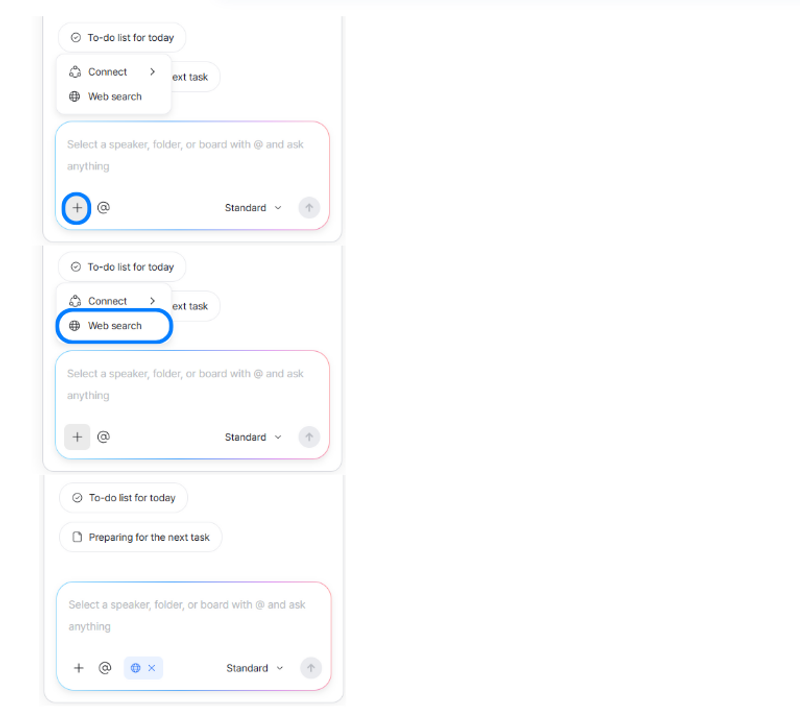
- Turn on the web search option in the daglo Chat input field.
- Enter what you want to research.
- Check the web sources included with the answer.
You can use web search to look up terms mentioned in meetings or research relevant policies and the latest information.
- Look up the terms mentioned in this meeting.
- Find the latest information related to the topic we discussed in the meeting.
Web search is turned off by default. You can turn it on or off as needed.
Selecting a Response Model
You can choose a response model in daglo Chat to suit your needs.
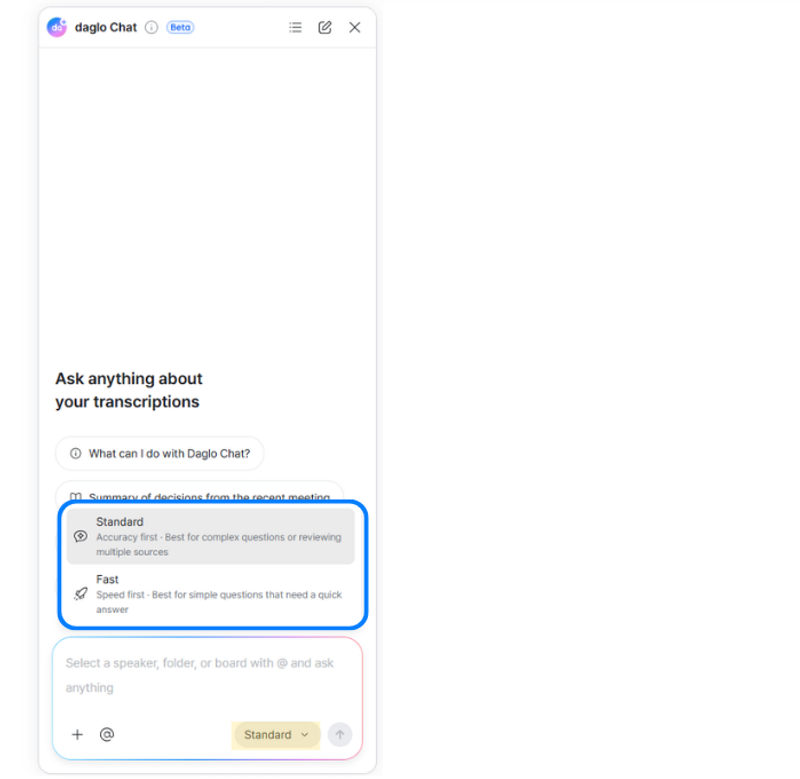
- Standard: The default model.
- Fast: Select this option when response speed is your priority.
Choose your preferred model from the model selection menu before asking your question.
※ Actual response times may vary depending on the complexity of your question, the amount of reference material, and service conditions.
Using Notion and Slack
Connect Notion or Slack to review meeting content alongside external documents and messages, and use them for follow-up work.
Connecting External Services
Click or tap the + button in the bottom-left corner of daglo Chat, or go to [Connections] in Settings to check your Notion and Slack connection status and the names of connected workspaces.
Connect the service you want to use and complete the required authentication and permission settings. You can then ask daglo Chat to perform tasks using that service.
If you have already connected Notion or Slack, check the connection status before using it.
Example Requests
- Update the Notion document to reflect the meeting discussion.
- Combine the information from multiple meetings into a new Notion document.
- Compare the Notion document with the meeting content and identify decisions that have not yet been reflected in the document.
- Summarize the meeting decisions and share them in a Slack channel.
- Compare the meeting content with the discussion in Slack.
- Draft a Slack message, but do not send it.
※ Requested tasks are performed within the permissions granted for the connected service.
Approving External Service Access
When you submit a request that uses Notion or Slack, you may be asked to allow access to that service.
- Always allow: Allows the service to be used in new chats without asking for approval again.
- Allow in this chat: Allows the service to be used only in the current chat. Approval is required again in a new chat.
- Don’t allow: Prevents the service from being used. Related tasks will not be performed.
Even if you select “Always allow,” you can revoke permission in Settings.
You may be asked for approval again if you disconnect and reconnect a service, or if reauthentication is required.
※ Requesting too many tasks at once may prevent some tasks from being completed. If this happens, split your request into smaller tasks.
Managing New Chats and Chat History
Starting a New Chat and Viewing Previous Conversations
Start a new chat if you want to ask about a different topic separately from your current conversation.
The chat title is based on the first question you send.
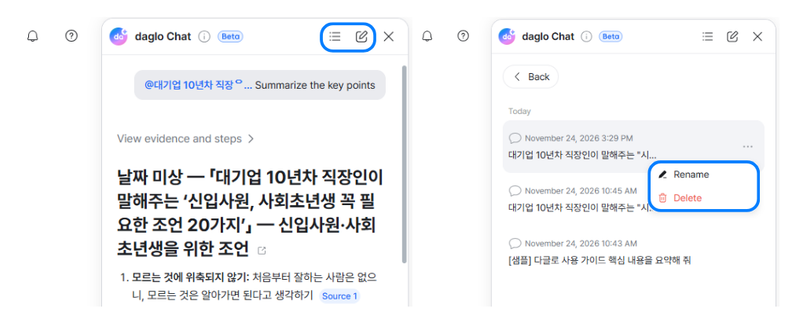
Select the first menu icon in the top-right corner of daglo Chat to view your chat list.
Select the second icon to start a new chat.
Select the menu button (three dots) to the right of a chat to rename or delete it. Open a previous chat to continue the conversation.
Renaming a Chat
Use the rename option to give your chat a title that is easy to recognize.
Titles can be up to 48 characters long and cannot consist only of spaces.
Deleting a Chat
You can delete chats you no longer need from your chat history.
You can also delete a chat while an answer is being generated.
※ Deleted chats cannot be recovered. Check whether you need to keep any content before deleting a chat.
Searchable Content and Search Scope
Searchable Boards
daglo Chat answers questions based on transcripts in transcription boards created from sources such as YouTube videos, recordings, and uploaded files.
The following are not included in searches:
- Document translation, PDF, quiz, and slide boards
- Template summaries
- Sample boards
- Boards with recordings or transcriptions still in progress
- Boards in the Trash or deleted boards
- Boards your current account does not have permission to access
※ daglo Chat cannot reference the content of PDF boards.
You can continue using PDF Board Chat within each PDF board as before.
When a New Board Does Not Appear in Searches
Newly created transcription boards may not appear in daglo Chat searches immediately.
Even after transcription is complete, additional processing is required before the board can be searched. This may take some time.
Boards that are still being prepared for search are excluded from general searches. However, you can directly mention a board to ask questions based on its original transcript.
When You Edit a Transcript
Edits made directly to the transcript text are not reflected in daglo Chat searches. Answers are based on the original, unedited transcript.
However, changes to participant information in the transcript are reflected in searches.
Search Scope by Plan
- Free plan: You can search boards created within the last month.
- Paid plans: The restriction based on when a board was created is removed.
After upgrading from the Free plan to a paid plan, older boards will become searchable. This may take about a day to take effect.
※ Restrictions related to board type, access permissions, and search readiness apply regardless of your plan.
Important Usage Information
Credits and Usage Limits
Using daglo Chat consumes credits.
If you do not have enough credits or have reached your plan’s usage limit, a notice will appear. You may need to check your credits or plan to continue using the service.
Tasks daglo Chat Cannot Perform Directly
daglo Chat helps you search records, organize content, and use connected external services. For the following tasks, please use the relevant menus in daglo or contact Customer Support:
- Starting or stopping recordings and creating transcription boards
- Creating translation, PDF, or slide boards and generating quizzes
- Checking remaining credits, account details, or plan information
- Viewing events in connected Google or Outlook calendars
- Resolving billing or account issues and reporting errors
If an Error Occurs
- If you see a notice about a temporary error or high demand, wait a moment and try again.
- If you see a network connection error, check your internet connection.
- If you requested too many tasks at once, split your request into smaller tasks.
- If you see a notice that the conversation length limit has been reached, start a new chat.